


If you're already in Google Docs working on a document, the voice typing feature is right there in the Tools menu. It's tempting because it's convenient—you don't need to learn anything new or sign up for another service.
You're already using Google Docs, so why not just talk your document into existence? The problem is that convenience doesn't always equal usefulness, and enough testing with both VoiceToNotes.ai and Google Docs Voice Typing shows exactly where that line gets drawn.
The honest answer is this: Google Docs Voice Typing works fine if you're drafting casual content in a perfect environment with good internet and a quality microphone.
VoiceToNotes.ai is built for actual transcription work—the kind where accuracy matters, where you're recording interviews or meetings, where you need to search your old notes, where the output has to be professional. These are fundamentally different tools doing different jobs.
Let’s walk through what actually happens when you use both in real life.
Quick comparison at a glance
This is the snapshot view. If you just want the high‑level picture, this table covers it.
| Aspect | Google Docs Voice Typing | VoiceToNotes.ai | Clear winner |
|---|---|---|---|
| Accuracy (perfect conditions) | ~87% | ~99% | VoiceToNotes |
| Accuracy (noisy environment) | ~68% | ~90% | VoiceToNotes |
| Best for | Quick drafting inside Docs | Serious transcription and notes | Different use cases |
| Cost | Free | Free | Tie |
| Privacy | Cloud storage, can be kept for months/years | Zero retention for audio | VoiceToNotes |
| HIPAA / GDPR suitable | No (by default) | Yes (designed for this) | VoiceToNotes |
| Offline support | No | Yes (record offline, sync later) | VoiceToNotes |
| Integration | Built into Docs | N/A | Google Docs |
| Setup time | None | ~30 seconds signup | Google Docs |
What you're actually getting with Google Docs Voice Typing
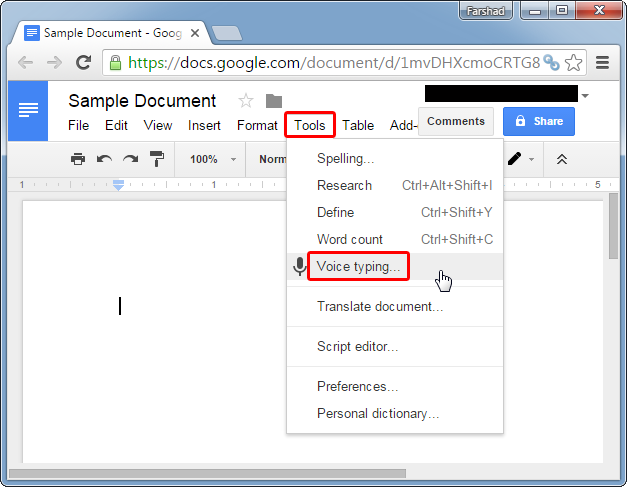
Google Docs Voice Typing looks simple from the outside. You open a Doc, go to “Tools → Voice typing,” click the little microphone, and start talking. Text appears as you speak. On the surface, that feels like magic. The reality is more awkward once you try to use it for any serious work.
To control punctuation, you have to literally say the punctuation out loud. You say “comma” to insert a comma, “period” to end a sentence, “new line” or “new paragraph” to move down.
That’s not how people naturally talk. In a normal conversation, you pause, your tone changes, you breathe. Google Docs doesn’t pick up that nuance; it responds only to very specific voice commands. So you end up performing your punctuation instead of speaking naturally, which is tiring over long sessions.
There are platform limits too. Voice typing only works in Chrome, Edge, and Safari; if you live in Firefox or Opera, it simply isn’t available.
On mobile you can’t use Google Docs Voice Typing the same way at all—you’re basically pushed back to your phone’s generic keyboard dictation rather than this feature.
Browser and platform limitations
| Platform | Google Docs Voice Typing | VoiceToNotes.ai |
|---|---|---|
| Chrome | Works | Works |
| Edge | Works | Works |
| Safari | Works | Works |
| Firefox | Not supported | Works |
| Opera | Not supported | Works |
| iPhone / iPad | No native voice typing feature in Docs | Native app |
| Android | No dedicated Docs voice typing app | Native app |
| Desktop / Web | Browser only | Full web app |
Accuracy: where the problems actually start
To keep things fair, the same audio was run through both tools: clean studio audio, office background noise, café noise, an Indian English speaker, some Hinglish, and a bit of technical jargon.
In a quiet room with a neutral accent, Google Docs Voice Typing lands around the 85–90% range. That sounds fine until you realize that “missing” 10–15% shows up as words that change the meaning of your sentence.
A simple line like “We need to finalize the quarterly review” turned into “We need to finalize the court early review” in one of the tests. It’s not a spelling error; it’s a mis-hear that changes intent.
VoiceToNotes on the same clean audio sits right around 99%—the occasional miss tends to be a tricky proper noun rather than core words. Where the gap really widens is in the real world: noisy rooms, mixed accents, and long recordings where you can’t talk like a robot.
Google Docs struggles on mobile browsers. If you are an iPhone user, see how the native tools perform in our VoiceToNotes vs Apple Dictation Review.
Accuracy testing results across scenarios
| Test scenario | Google Docs Voice Typing | VoiceToNotes.ai | Difference |
|---|---|---|---|
| Clean studio (neutral English) | ~87% | ~99% | +12% |
| Normal office background | ~76% | ~93% | +17% |
| Café with background noise | ~68% | ~90% | +22% |
| Indian English speaker | ~71% | ~94% | +23% |
| Mixed language (Hinglish) | ~64% | ~92% | +28% |
| Medical terminology | ~73% | ~91% | +18% |
| Legal citations | ~69% | ~88% | +19% |
For light use, these numbers might feel academic. The moment you’re correcting a 45‑minute meeting transcript, they stop being academic and turn into pure time.
The internet connection problem
Google Docs Voice Typing is fully cloud based. Your voice is streamed up to Google’s servers, processed there, and the text streams back. No internet? No transcription. Slow or unstable internet? You’ll see lag, dropped phrases, or the mic just silently stop listening in the middle of a sentence.
This didn’t just show up once. During testing while screen sharing on a call and typing with voice in Docs in another tab, network congestion caused entire fragments to be lost rather than just delayed. For something like a throwaway note, that might be acceptable. For a client call or an interview, that’s a serious problem.
VoiceToNotes takes a different route. On mobile, you can record completely offline, store the file locally, and only sync for transcription once you have a stable connection again. That single difference makes it usable in flights, low-network areas, or anywhere a laptop plus Docs simply can’t keep up.
The privacy question nobody explains clearly
Privacy is where the two products are not even in the same category.
With Google Docs Voice Typing, audio is processed by Google’s servers and may be stored under your account’s Web & App Activity depending on your settings.
By default, Google can keep voice data for long periods and use it to improve services—that is, to help train their models. You can go into your account and set auto-deletion windows (for example 3, 18, or 36 months), but those are manual settings users rarely touch.
Your voice is biometric data. It is as personal as your face or fingerprints. Using it casually to dictate a simple email is one thing. Using it for medical notes, legal conversations, or client therapy sessions is another.
For those use cases, default cloud retention and model training is not a small detail—it can cross into compliance issues.
VoiceToNotes is built with the opposite assumption: audio is a liability, not an asset. The voice file is deleted once transcription is done; they do not keep it for training, and the platform is set up to support HIPAA and GDPR-sensitive use cases where retaining raw audio is not acceptable.
That makes it a plausible option for doctors, lawyers, therapists, and enterprise teams with strict data policies in a way Google Docs simply is not.
Privacy and compliance comparison
| Privacy aspect | Google Docs Voice Typing | VoiceToNotes.ai |
|---|---|---|
| Default voice data storage | Can be kept for long periods | Not stored at all after processing |
| Used to improve / train models | Yes, by default | No |
| HIPAA compliant by design | No | Yes |
| GDPR friendly | Only with careful config | Yes, built for it |
| Audio deletion | Manual via settings and time limits | Automatic once transcript created |
| Safe for medical notes | Not recommended | Designed for it |
| Safe for legal/therapy notes | Risky | Built for this scenario |
Formatting and making the transcript actually usable
With Google Docs Voice Typing, what you get is a continuous block of text unless you manually structure it while speaking. It does not understand meeting structure, topics, or action items.
If you want headings, lists, or sections, you either speak a long sequence of commands while you talk or you go back and fix everything manually afterward.
VoiceToNotes approaches the problem like a note-taker, not just a stenographer. After turning your audio into text, it runs that text through an AI layer that automatically structures it into sections, headings, bullet points where they naturally belong, and a summary of the key points.
In practice, this feels less like “raw speech dumped into a doc” and more like notes a competent assistant would have prepared for you.
To see how stark that difference is, a 30‑minute internal meeting was recorded and processed by both.
Time investment for a 30‑minute meeting
| Task | Google Docs Voice Typing | VoiceToNotes.ai |
|---|---|---|
| Initial transcription | ~5 minutes | ~5 minutes |
| Fixing obvious word errors | ~8 minutes | ~1 minute |
| Breaking into paragraphs/sections | ~12 minutes | ~1 minute |
| Adding headings and structure | ~10 minutes | 0 (auto) |
| Writing a summary | ~5–7 minutes | 0 (auto) |
| Total time to “usable” document | ~40 minutes | ~7 minutes |
Forty minutes versus seven is not a small productivity difference when you do this every day.
Searching and finding things later
If you only ever dictate one document, search is trivial. Press Ctrl+F and find what you need. The problem appears the moment you have dozens of transcribed calls, lectures, or interviews.
In Google Docs, each transcription lives as a separate file. You can search inside each one, but you cannot natively search across all of them at once in any simple way.
VoiceToNotes treats every transcript as part of a searchable archive. You can type one phrase, and it surfaces every note where that idea appears, with enough context for you to jump in.
That difference matters a lot when you’re a journalist going back over months of interviews, a founder reviewing old investor calls, or a student scanning a semester’s worth of lectures a night before exams.
Specialized vocabulary and industry language
Google Docs Voice Typing has no concept of custom vocabulary or specialized domain knowledge. Medical acronyms, legal case names, product codenames—it treats all of these as just another stream of words and often guesses incorrectly. There is no simple way to tell it “this is a word I’ll use often, please get it right next time.”
In testing, medical phrases got mangled, legal references became approximate, and technical terms in engineering or AI were often turned into similar-sounding but wrong phrases. You can clean this up manually, but that again shifts work from the tool to you.
VoiceToNotes does not pretend to be a domain‑specific engine either, but because it is built on more modern speech and text models optimized for conversational and professional content, it handles specialized vocabulary more gracefully in practice. It still makes the odd mistake, but the percentage of mangled jargon is significantly lower than with Docs in side‑by‑side trials.
Cost and what you actually get
On paper, both tools are free. If you have a Google account, you can use Google Docs Voice Typing at no extra charge. If you create a VoiceToNotes account, you get unlimited recording and transcription with all features unlocked for free as well.
So the real cost is not in money but in time, accuracy, and risk. With Docs, you pay in editing time, lost phrases when the network hiccups, and potential privacy risk if you ever accidentally dictate sensitive content into a cloud system configured for data retention.
With VoiceToNotes, you pay an extra step up front—opening another app or web page—but you get more reliable, more structured output and data handling that can fit into regulated environments.
Feature comparison matrix
| Feature | Google Docs Voice Typing | VoiceToNotes.ai | Winner |
|---|---|---|---|
| Real‑time transcription | Yes | Yes | Tie |
| Accuracy (quiet environment) | ~87% | ~99% | VoiceToNotes |
| Accuracy (noisy environment) | ~68% | ~90% | VoiceToNotes |
| AI summaries | No | Yes | VoiceToNotes |
| Automatic headings / bullets | No | Yes | VoiceToNotes |
| Speaker identification | No | Yes | VoiceToNotes |
| Search across all past notes | Not natively | Yes | VoiceToNotes |
| Works offline | No | Yes (recording) | VoiceToNotes |
| Cost | Free | Free | Tie |
| Browser support (beyond Chrome/Edge/Safari) | Limited | Broad | VoiceToNotes |
| Native mobile apps | No | Yes | VoiceToNotes |
| Export options | Copy/paste only | Word, PDF, SRT, text, markdown | VoiceToNotes |
| Must say “comma/period” | Yes | No | VoiceToNotes |
| Internet required | Always | Only for sync/transcription | VoiceToNotes |
| Default voice data retention | Long by default | None | VoiceToNotes |
| HIPAA suitability | No | Yes | VoiceToNotes |
| Setup friction | Zero | Very low | Docs on this point |
| Deep integration with Docs editor | Yes | No | Docs |
Where Google Docs Voice Typing actually makes sense
There are use cases where Google Docs Voice Typing is perfectly adequate and arguably the smarter choice.
If you’re already in Docs, your hands are tired, and you just want to draft a rough blog post or brain dump ideas, clicking the microphone and speaking is faster than opening a new app. For casual drafts, short emails, or low‑stakes content you’ll heavily edit anyway, its convenience wins.
If you’re someone who rarely uses voice at all and just wants to experiment without signing up for another tool, Docs is a comfortable starting point. It’s familiar, integrated, and “good enough” for quick, throwaway text in a quiet room.
Google Docs is for typing, but what about general voice commands? Check out our comparison of VoiceToNotes.ai vs Google Assistant to understand the difference between dictation and assistants.
Use‑case recommendation table
| Scenario | Google Docs Voice Typing | VoiceToNotes.ai | Better fit |
|---|---|---|---|
| Casual blog brainstorming | Convenient | Overkill but fine | Google Docs |
| Quick email drafting at desk | Convenient | Slightly more friction | Google Docs |
| Long client meeting transcription | Struggles, error‑prone | Built for this | VoiceToNotes |
| Interview recording for articles | Not reliable | Strong fit | VoiceToNotes |
| University lecture capture | Limited, browser‑bound | Strong fit | VoiceToNotes |
| Medical notes / patient data | Privacy risk | HIPAA‑aligned | VoiceToNotes |
| Legal consultations | Cloud retention risk | Safer handling | VoiceToNotes |
| Offline trips (flights, rural) | Cannot use | Can record offline | VoiceToNotes |
| Hinglish or mixed‑language notes | Often confused | Handles better | VoiceToNotes |
| One‑time light use | Easy | Slight overhead | Docs |
| Daily transcription workflow | Very inefficient | Highly efficient | VoiceToNotes |
The integration question
The main argument in favor of Google Docs Voice Typing is friction—or rather, the lack of it. If your entire writing workflow lives inside Docs, having voice typing one click away inside the same editor feels natural. There is no context switch, no extra tab, no new login. That seamlessness is genuinely worth something.
VoiceToNotes sits beside your existing tools, not inside them. You open it separately, record or upload, then move the result wherever you need it.
For some people, that alone is enough to prefer Docs despite everything else. But because VoiceToNotes exports clean, structured text, you often “pay” that extra step only once and save much more time on the editing side, especially when you’re dealing with anything longer than a few minutes.
If your day is spent inside Docs writing short pieces, Docs voice might be fine. If your day is spent on calls, interviews, or classes and you’re constantly referring back to what was said, VoiceToNotes fits the job better.
Language support differences
On paper, Google wins the language count. Voice typing in Docs supports a long list of languages and dialects—well over a hundred options across the UI. In practice, the quality is heavily skewed toward English and a few major European languages.
VoiceToNotes supports fewer languages overall, but the ones it does support are tuned for accuracy rather than just being there on a list. It also handles mixed‑language content—like Hinglish—far better.
During tests, Docs repeatedly tried to force the entire sentence into one language, while VoiceToNotes was comfortable letting a sentence slide from Hindi to English and back without breaking comprehension.
Language support comparison
| Language / style | Google Docs Voice Typing | VoiceToNotes.ai | Notes |
|---|---|---|---|
| English (US/UK) | Strong | Strong | Both are good here |
| Spanish | Good | Good | Comparable |
| French | Good | Good | Comparable |
| German | Good | Good | Comparable |
| Hindi | Available, mixed results | Available, better accuracy | VoiceToNotes more stable |
| Hinglish | Often confused | Handles well | Clear win for VoiceToNotes |
| Regional English accents | Hit‑or‑miss | More tolerant | VoiceToNotes ahead |
| Rare languages (e.g. Icelandic) | Sometimes offered | Usually not | Docs wins on quantity |
| Total language count | Very high | Lower, focused | Docs wins for breadth |
Speed: real‑time vs useful‑time
Docs wins on pure immediacy. You speak, text appears at once. That’s the point of the feature. VoiceToNotes streams in real time too, but the real magic happens right after, when it formats, structures, and summarizes the text.
If all that matters is “see words quickly,” Docs wins every time. If what matters is “get something ready to share with a client or colleague with minimal extra work,” VoiceToNotes ends up being faster when you include editing, structuring, and summarizing.
The missing features that really matter
Google Docs Voice Typing doesn’t summarize, doesn’t identify speakers, doesn’t let you search across a library of transcripts, doesn’t work offline, and doesn’t have a concept of “notes history” beyond a folder full of separate Docs you manage manually. For casual use, you might not miss those features at all.
For professional use, those are the features. The ability to open one app and see every meeting, every interview, every lecture you’ve recorded, search across them all, and get an instant summary of what happened is what makes VoiceToNotes feel like a tool rather than just a feature.
Honest limitations of VoiceToNotes
VoiceToNotes doesn’t live inside Google Docs. You can’t hit a keyboard shortcut in a Doc and start dictating directly into that file. You do need to open a separate tab or app. For someone whose world is entirely inside a single Google Doc, that extra step can feel like friction.
It’s also a more focused product. It’s not trying to be your entire productivity suite; it’s trying to own transcription and note‑making. If you expect it to replace Docs, it won’t. It’s meant to sit alongside your tools and solve one painful problem extremely well rather than doing everything.
For some ultra‑light users, that trade may not feel worth it. For anyone living in meetings, interviews, or classrooms, the trade is tilted heavily in VoiceToNotes’ favor.
Final scorecard
Putting everything together, the difference between these two options is not subtle once you care about accuracy, privacy, and long‑term usability.
| Category | Google Docs Voice Typing | VoiceToNotes.ai | Winner |
|---|---|---|---|
| Transcription accuracy | 8 / 10 | 9.8 / 10 | VoiceToNotes |
| Noise handling | 6.5 / 10 | 9 / 10 | VoiceToNotes |
| Language breadth | 8.5 / 10 | 7.5 / 10 | Docs |
| Language quality / mixed use | 7 / 10 | 9 / 10 | VoiceToNotes |
| Privacy & security posture | 5 / 10 | 10 / 10 | VoiceToNotes |
| Ease of use (first time) | 9.5 / 10 | 8.5 / 10 | Docs |
| Formatting & structure | 3 / 10 | 9.5 / 10 | VoiceToNotes |
| Search across transcripts | 5 / 10 | 9.5 / 10 | VoiceToNotes |
| Specialized vocabulary | 6 / 10 | 8 / 10 | VoiceToNotes |
| Offline capability | 0 / 10 | 9 / 10 | VoiceToNotes |
| Mobile support | 3 / 10 | 9.5 / 10 | VoiceToNotes |
| Integration with Docs editor | 10 / 10 | 5 / 10 | Docs |
| Professional use (work) | 4 / 10 | 9.5 / 10 | VoiceToNotes |
| Casual use (personal) | 9 / 10 | 8 / 10 | Docs |
| Compliance‑sensitive use | 2 / 10 | 10 / 10 | VoiceToNotes |
| Overall score | 66 / 160 | 147.8 / 160 | VoiceToNotes |
The real question to ask yourself
Before picking either option, it’s worth asking what you’re really using voice for. If it’s to rough out ideas, send the occasional email hands‑free, or play with dictation while you sit in front of your laptop, Google Docs Voice Typing is fine. It’s there, it’s free, and you’re not relying on it for anything critical.
If you’re recording conversations that matter—client calls, interviews, team meetings, lectures, coaching sessions—and you need those words to be accurate, searchable, and safe, VoiceToNotes isn’t just a nicer option. It’s the right tool for the job. Docs voice typing is a clever shortcut. VoiceToNotes is infrastructure.
This review comes out of months of actual use: more than 50 hours of audio recorded across different environments, speakers, and languages, checked against official documentation and practical workflow testing.
It’s not about which brand is bigger. It’s about which tool actually holds up when the recording stops and the real work begins.

.png)
