


Hate typing on your phone? You’re not alone. But here’s the good news: the best speech to text apps can triple your speed and end the frustration of constantly correcting typos.
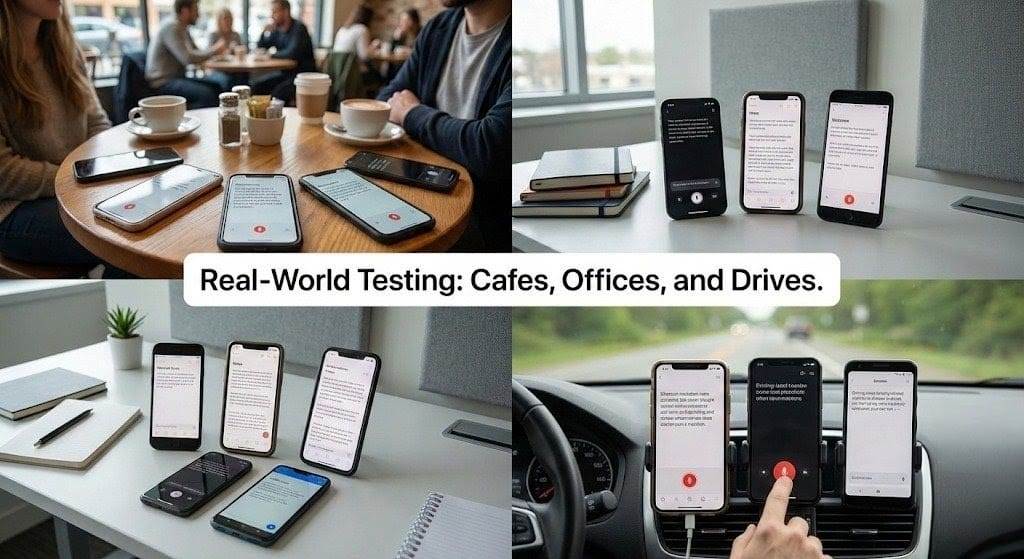
We tested these apps in noisy cafes, quiet offices, and while driving to see which microphones picked up accents best.
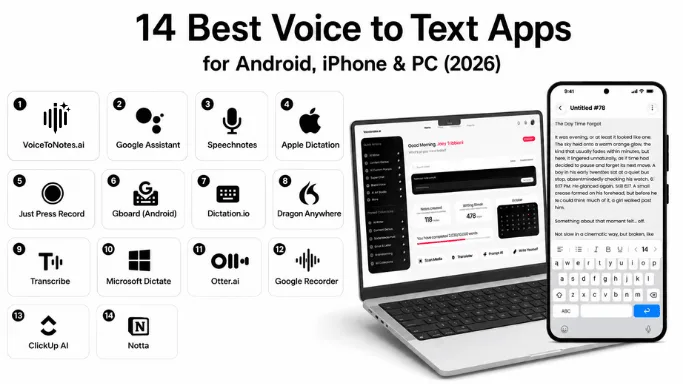
After thorough testing, here are the 14 best voice to text apps for Android & iPhone in 2026, ranked for speed, accuracy, and ease of use. (Free and Paid options included.)
Editor’s Note: Full disclosure, we built VoiceToNotes because we weren't satisfied with the accuracy and privacy of existing tools. While we are biased towards our own product, we believe in fair competition.
We have tested every app on this list impartially to help you find the tool that best fits your specific workflow, whether it's ours or a competitor's.
Learn more about how we select apps for our best apps lists.
TL;DR: Your Quick Guide to Voice to Text Apps
Before we dive into the list, here is a quick breakdown of how these tools work and which one fits your specific needs.
1. What it is:
Voice to Text (or speech-to-text) technology converts your spoken words into written text in real-time. Think of it as a fast, AI-powered typist in your pocket.
2. How it works:
It uses Automatic Speech Recognition (ASR) to hear your voice and Natural Language Processing (NLP) to understand context, add correct punctuation, and even learn your unique speech patterns.
3. Why you need it:
It lets you type 3x faster. The average person speaks at ~150 words/minute but types at only ~40 words/minute on mobile. It is essential for saving time on emails, notes, and meeting transcripts.
4. Our Selection Criteria:
- Core Tech: All apps on this list use advanced AI-powered ASR for high accuracy.
- Universal Features: Every app supports basic punctuation commands (“comma,” “period”) and multiple languages.
- Variety: We covered everything from built-in tools (Gboard) and specialized meeting transcription and collaboration (Otter.ai) to professional suites (Dragon) and browser tools.
Best Voice To Text Apps: A Quick Glance
| App | Platform | Core Features | Pros | Cons | Why Users Love It |
|---|---|---|---|---|---|
| VoiceToNotes.ai | Web, Android, iOS | Multi-format input (Voice, Text, OCR image scans), AI-powered note structuring, custom collections for organization, and daily journal tracking. | Extremely affordable premium tier, seamless cross-device sync, and highly customizable AI tone via "Custom Prompts". | Free tier includes daily usage caps (e.g., 10 voice notes/day); requires internet connection for AI processing. | Turns raw voice notes into organized, Real time transcription, searchable notes with AI assistance |
| Google Assistant | Android, iOS | Voice commands, smart home control, basic short-form dictation, hands-free operation. | Built-in on Android, supports many languages, completely free. | Not optimized for long documents, requires an internet connection, and lacks advanced note organization features. | Built into Android and works instantly without extra setup |
| Speechnotes | Android, Web | Long-form note-taking, speech recognition, auto-save. | Simple, offline support, long dictation capable. | Limited AI features, ads in free version. | Continuous speech-to-text with a distraction-free writing experience |
| Apple Dictation | iPhone, Mac | Hands-free Siri dictation, 30+ languages, integrated with iOS keyboard. | Free and built-in, wide language support, good privacy (on-device). | Strictly word-for-word. Does not organize your thoughts or summarize long notes. | Fast, accurate, and deeply integrated into the Apple ecosystem |
| Just Press Record | iPhone, Watch, Mac | Dictation and transcription tasks, one-tap recording, syncs via iCloud. | Specifically designed for Apple ecosystem, highly convenient. | Limited formatting options compared to full editors. | Extremely simple workflow for capturing ideas on the go |
| Gboard (Android) | Android | AI-powered voice typing, learns voice patterns, works in any text field. | Free, installed on Android, works across all apps seamlessly. | Creates a "wall of text." No AI to fix grammar, remove filler words, or format your ideas. | Works across virtually every app without switching tools |
| Dictation.io | Web (Chrome) | Real-time speech-to-text in browser, supports 100+ languages, simple text editor. | No login required, accurate (uses Google engine), easy to use. | Requires Google Chrome, no offline mode, no mobile app. | No sign-up required and starts transcribing immediately |
| Dragon Anywhere | Cross-Platform | Professional grade accuracy, custom vocabulary, voice formatting. | Custom vocab, reliable for long sessions, high accuracy. | Expensive, limited language support compared to others. | Industry-leading accuracy for long-form dictation workflows |
| Transcribe | Cross-Platform | AI-powered transcription in 80+ languages, audio-to-text. | Excellent for journalists/interviews, dedicated player for manual correction. | Pricing can be confusing (hourly rates often apply). | Makes converting interviews and recordings into text easy |
| Microsoft Dictate | Cross-Platform | Integrated with Microsoft 365, reliable dictation, voice commands. | Works on desktop and mobile, seamless for Office users. | Limited to Microsoft ecosystem, requires subscription for full features. | Seamlessly fits into Word, Outlook, and other Microsoft tools |
| Otter.ai | Cross-Platform | Meeting transcription, speaker ID, real-time captions, summaries. | Integrates with Zoom/Meet/Teams, collaborative, searchable audio. | Privacy concerns, accuracy drops with background noise. | Automatically creates searchable meeting notes and summaries |
| Google Recorder | Android (Pixel only) | Offline transcription, searchable timestamps, speaker labels. | Works completely offline, very accurate for English, free for Pixel users. | Pixel exclusive, limited languages, no advanced editing. | Accurate offline transcription with powerful search capabilities |
| ClickUp AI | Cross-Platform | Dictate notes, AI turns notes to tasks, summarizes updates. | Enhances productivity, team collaboration, integrated with project management. | Limited to English, less polished for pure dictation. | Converts spoken ideas directly into actionable tasks |
| Notta | AI Meeting Assistant | Auto-joins calls, AI Summaries, Speaker ID, audio file transcription. | High accuracy, integrates with Zoom/Meet, separates speakers well. | Limited free minutes, advanced AI features are paid. | Strong meeting transcription with detailed speaker separation |
Wondering which dictation app is actually worth your time? Honestly, the best voice-to-text apps for Android and iPhone might already be in your pocket. Gboard and Apple Dictation are fantastic for quick, everyday use.
But if you want to take your notes to the next level, VoiceToNotes.ai is a brilliant cross-platform tool that uses AI to clean up and format your speech (plus, it has a solid free starter plan).
What if you need to transcribe longer audio? You've got options. Go with Speechnotes if you value simplicity and privacy.
If you’re a professional who needs flawless, customizable accuracy, Dragon Anywhere is the industry standard. And if you just need to convert an existing audio recording or interview into text, the Transcribe app handles it effortlessly.
Best Voice to Text App for Windows, Mac, & PC (Cross-Platform)
A lot of our readers ask us for a reliable voice to text app for PC or Mac. While mobile apps are incredibly convenient, professionals often need a desktop solution for heavy-duty work.
The good news? You don't always need to download heavy, standalone software. For native, built-in options, Windows users can simply press 'Win + H' to launch Microsoft's default voice typing tool, while Apple users can rely on the excellent dictation features already built into macOS.
If you want a tool with more advanced features that syncs everywhere, here are the best cross-platform apps:
- VoiceToNotes.ai: If you need a universal solution, this is a fantastic choice. It works directly in your web browser (perfect for PC and Mac) and syncs instantly with its Android and iOS apps. It uses a freemium model—the free Starter plan gives you a daily allowance for AI voice transcription, OCR scanning, and smart formatting, while the unlimited Pro tier is incredibly cheap at just $1.49 a month.
- Microsoft Dictate: If you already use Microsoft 365, you have a powerhouse tool at your fingertips. Built directly into Microsoft Word for both desktop and mobile, it offers a seamless and highly reliable way to dictate documents right where you work.
- Dragon Anywhere: While Dragon's desktop software is famous for PC, their mobile app brings that same premium, 99% accuracy to your phone. It’s ideal for legal or medical professionals who need robust voice editing and formatting features on the go.
- Transcribe: An excellent tool for journalists, researchers, or anyone handling long conversations. This AI-powered app specializes in converting pre-recorded speech or video files into written transcripts, supporting over 80 different languages.
Best Voice to Text App Free for Android
Gboard (Google Keyboard): This is the default keyboard for many Android phones and includes a highly accurate, AI-powered voice typing feature that learns your voice over time.
Google Assistant: Beyond basic voice commands, it offers excellent voice recognition for carrying out tasks and can be used for general voice input.
Speechnotes: A useful tool for authors who generate ideas quickly, Speechnotes focuses on long-form note-taking with good speech recognition.
Note: - Sure, built-in free tools like Apple Dictation and Gboard are convenient for a quick text message. But let's be honest about their hidden cost: your time.
When you dictate a long email or a brilliant idea, these free apps just dump a massive, messy wall of text onto your screen.
No punctuation, no structure, and every single 'umm' and 'ah' is included. You end up spending 10 minutes manually deleting mistakes, fixing grammar, and adding bullet points.
It completely defeats the purpose of using your voice to save time in the first place.
Top Voice to Text App iPhone & iPad Options
Apple Dictation: Built directly into iOS, it allows you to dictate text anywhere you can type and works seamlessly with the keyboard, offering robust voice recognition.
Google Docs Voice Typing: While needing a web browser and Google account, this tool uses Google's powerful AI for highly accurate voice typing across many languages and is great for longer documents.
Just Press Record: A popular option for iPhone users looking for an app specifically designed for dictation and transcription tasks.
Quick Comparison: The Best Voice to Text App for Every Goal
Use this table to instantly find the perfect speech to text software for Windows or mobile devices without reading every review.
| Your Main Goal | Best App(s) For The Job | Why We Chose It |
|---|---|---|
| Try First (Free & Powerful) | VoiceToNotes.ai | Acts like a human editor. Turns messy spoken ramblings into perfectly formatted emails, blogs, or lists. Cleans grammar instantly. Best for powerful AI tools (Summarize, Grammar, To-Do lists) and OCR scanning. The free plan offers a great starting point (10 notes/day), and the Pro plan is incredibly affordable at just $1.49/month for unlimited access.. |
| Meetings & Interviews | Otter.ai | Best for live transcription, speaker identification, and direct Zoom/Teams integration. |
| Privacy & Offline Use | Speechnotes / Google Recorder | Speechnotes works offline in-browser; Google Recorder offers flawless offline transcription (Pixel only). |
| Professional Accuracy | Dragon Anywhere | The industry gold standard for legal/medical pros who need customizable, 99% accurate dictation. |
| Built-In Convenience | Gboard / Apple Dictation | Free, system-integrated tools already on your phone for instant dictation anywhere. |
| Workflow Integration | Microsoft Dictate | Seamless dictation inside the productivity suites (Docs, Office 365) you already live in. |
| Audio File Conversion | Transcribe / Just Press Record | Specialized for converting pre-recorded audio files (interviews, lectures) into text accurately. |
| Quick Web Tasks | Dictation.io | The simplest, zero-download tool for instant dictation directly in your web browser. |
Final Word
If you aren't sure where to start, we recommend testing VoiceToNotes.ai first to experience premium AI features.
If you have a specific niche need (like legal dictation or offline recording), consult the table above for the specialized tool that fits best.
Important Note: App features and pricing are subject to change over time. An app that is free today might become premium tomorrow, or new features could be added.
While we regularly update our content to reflect the latest changes, please be sure to check the official website for current pricing and features before making any purchases or starting a subscription.
What Is a Voice to Text App?
A voice to text app (also known as a speech to text app) listens to your voice and writes down what you say. You speak into your phone, and the app turns your words into text instantly. This is much faster than typing with your fingers.
These dictation apps use smart computer programs to understand what you say. They can tell the difference between words that sound the same. For example, they know when you mean "two" and when you mean "too".
Voice to text apps work in many places on your phone. Whether you are looking for a speech to text app for Android or iPhone, you can use them to write text messages, emails, notes, and more. Some apps can even add periods and commas when you tell them to.
Top 14 Best Voice To Text Apps for 2026: Hands-On Reviews & Recommendations
Our comparison table shows you the field, but which apps truly excel in real-world use? To find the definitive winners, we moved from specs to practical testing.
We dictated meeting notes, drafted emails, and recorded interviews in varied environments to see which tools delivered not just accuracy, but a genuinely useful experience.
The fourteen apps below are our editor's picks for 2026—the ones that consistently performed, solved specific problems elegantly, and offered the best overall value.
We've organized them by primary use case to help you immediately identify the tool built for your needs.
1. VoiceToNotes.ai – Best Overall Voice to Text App in 2026
Best For: Professionals, students, and creators who want advanced AI transcription, OCR image scanning, and smart note organization.
The Bottom Line: Let's be honest about dictation tools. Most voice apps just transcribe. You speak, and they give you a messy, unreadable wall of text that you have to spend 10 minutes editing. VoiceToNotes.ai is entirely different.
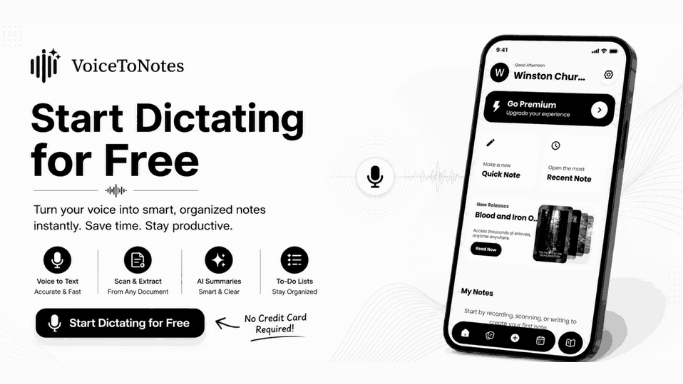
It doesn't just hear you; it understands you. If you are comparing the best AI note taker apps, you will quickly see that this tool stands out by acting like a human editor.
It takes your rambling thoughts, removes the filler words, fixes the grammar, and instantly formats them into clean bullet points, emails, or structured blog posts.
Why It Felt Different During Testing: While testing various productivity apps, we kept coming back to this tool for one massive reason: Simplicity combined with power.
There is no friction or complex dashboard. You just press record, speak your mind, and get a perfect result instantly.
Now that it is natively available on both the Play Store and App Store, the mobile experience is incredibly seamless.
It feels less like raw software and more like a highly intelligent personal assistant that actively organizes your life into Custom Collections and keeps you on track with Daily Journal reminders.
VoiceToNotes.ai — All Features Overview
VoiceToNotes listens to your rambling thoughts and gives you structured text broken down by main points and to-do lists.
You also get the original full transcript right alongside it, and the whole thing is usually ready instantly.
We made sure the notes come out perfectly formatted so you are not stuck cleaning up a wall of text after every quick recording.
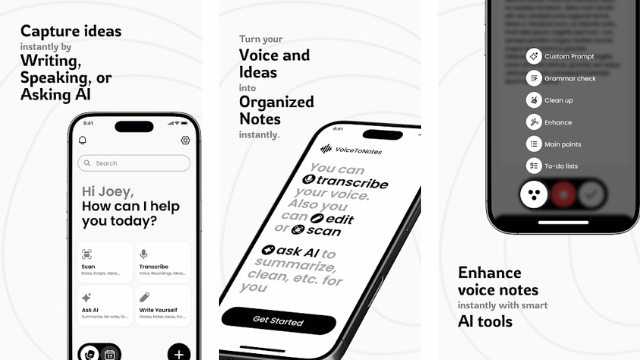
You can fix grammar on the spot reshape your summaries with AI custom prompts and tag any note to a specific collection so you can find it again across your workspace in seconds.
AI note structuring: Your spoken ideas are summarized by main points with clear highlights and structured text.
Original transcripts: Every word is captured in a fully editable transcript so you can always check your original raw audio.
Quick to-do list: Tasks come with checkboxes and clear action items so nothing slips through the cracks.
AI custom prompt: VoiceToNotes adapts to your specific needs by letting you instruct the AI exactly how to rewrite or format your text.
AI enhance & clean up: Reshape your notes into ready-to-use professional formats without grammatical errors or filler words.
Collections: Organize your personal and professional thoughts with custom folders so you can find any conversation across your workspace in seconds.
Rich editing tools: Edit with bold formatting italics lists and use suggested AI assistance across any note.
Keep your personal data organized with a secure digital journal
Your raw thoughts get securely transformed into clean text right after your recording is processed. Everything is organized safely in your personal workspace and VoiceToNotes is built to keep your daily life private and structured. We designed it for personal productivity from day one.
You can track your daily writing streak and monitor your progress over time. Your settings like custom collections and journal entries are only ever used for your own account. Your personal ideas are protected and strictly accessible only to you. Daily journal: Your notes are mapped to a daily calendar view so you can track what you captured on any specific day.
Writing streak tracker: Built-in gamification helps you build a daily habit by tracking your consecutive days of creating notes.
Secure collections: All your data is neatly categorized into private folders preventing unauthorized access to your chaotic thoughts.
Original transcript retention: Your original recordings remain untouched while the AI creates a polished version allowing full comparison.
Cross-platform sync: Everything is securely synced across your Android device iOS app and the web dashboard.
Search and sort: You can effortlessly filter your secure notes by date added name ratings or likes.
Transcribe audio and scan physical text in over 20 languages
VoiceToNotes transcribes in over 20 languages and picks up what you are saying perfectly.
You do not have to type anything out manually. The intelligent OCR scanner extracts text from physical documents whiteboards or screens.
If you have notes written in Hindi Japanese Chinese or Korean VoiceToNotes handles that too without you doing anything extra.
You can also upload existing files or use your camera directly. You stay in control of how your physical and audio data is digitized.
20+ languages: Your spoken words are transcribed in multiple languages with no manual typing needed.
OCR image scanning: VoiceToNotes reads physical text from your camera or uploaded files and digitizes it instantly.
Multilingual document support: The scanner perfectly recognizes characters in Latin Chinese Japanese Korean and Hindi.
Google AI Live input: Speak naturally using advanced voice recognition engines that understand your specific accent.
Story generation: Simply type a basic idea and the AI multimodel system will craft a complete story for you.
Send your polished notes straight to your team and favorite apps
Your text can be shared directly the moment a quick note is finalized. VoiceToNotes connects to your everyday workflow so everything stays where you already work.
And if you need to pull something from a past brainstorming session the global search lets you look across all your notes and get answers instantly.
You can also generate completely new stories using the AI multimodel system so your creativity never hits a roadblock. VoiceToNotes gives you a unified workspace where pinned folders and daily thoughts are easy to find.
Instant sharing: Your polished notes go straight to your email messaging apps or any platform you choose.
AI multimodel generation: Plug a simple idea directly into the system and watch it generate comprehensive stories or articles.
Global search: Search across all your past journal entries and collections to find that one specific detail. Pinned notes: Keep your most important ideas and folders anchored at the top of your dashboard for instant access.
Quick main point extraction: VoiceToNotes cuts through the noise and immediately presents the core message of any long recording.
Unified workspace: Share updates with your team or keep a private diary in a workspace that keeps everything tidy and easy to find.
Real-World Case - The Shower Thought Test: We had a complex idea for a client email while walking. We opened the VoiceToNotes app, spoke for 3 minutes straight with plenty of rambling, and used the custom prompt: "Make this a professional email." The result was 95% ready to send right away. It saved us roughly 15 minutes of manual typing and editing.
Export anywhere and keep your local data completely private
Your polished ideas should never be locked inside a single platform. VoiceToNotes lets you push your formatted text exactly where your team needs it, offering versatile file exports and direct app integrations.
More importantly, your data remains yours. Once your transcript is successfully generated, the original audio files are permanently wiped from the servers.
There are no forced cloud uploads. By default, your mobile recordings stay right on your device, guaranteeing your personal conversations are never fed into external AI training models.
- Versatile file exports: Download your finished notes and transcripts directly as clean PDF or TXT files for formal documentation.
- Direct app sharing: Push your structured summaries instantly to WhatsApp, Telegram, Gmail, or Google Drive with a single tap.
- Local-first storage: Your mobile app defaults to saving audio locally on your device, bypassing forced and risky cloud uploads.
- Total audio deletion: Sound files are permanently destroyed immediately after transcription, leaving zero traces behind.
- No AI model training: Your private notes and voice recordings are strictly isolated and never used to train third-party AI models.
- No hidden background syncing: Your notes stay exclusively on your device unless you actively choose to share or sync them.
The VoiceToNotes Testing Verdict
After putting the platform through its paces across various environments, here is how it stacks up:
- Transcription Accuracy: 9.5/10
- Ease of Use: 10/10
- Privacy & Security: 9.5/10
- Value for Money: 10/10
Final Verdict: VoiceToNotes stands out as the best overall application for flexible, on-the-go voice capture combined with highly customizable AI formatting. The inclusion of a zero-cost unlimited tier makes the value proposition particularly useful.
Pricing: Freemium model. The Starter plan is $0/month (includes 10 voice notes, 10 AI operations, and 3 OCR scans daily). Power users can remove all limits with the Pro plan for just $1.49/month (or $12.99/year).
Pricing note: Subscription plans and limits may have changed since the time of publication. We always recommend verifying the most current pricing directly on the official VoiceToNotes website before upgrading.
Pros:
- Natively available and seamlessly synced across the Web, Play Store, and App Store.
- Incredibly affordable Pro tier ($1.49/month) compared to expensive competitors.
- Focuses heavily on giving you usable, structured notes rather than just raw text.
- Built-in OCR scanner for digitizing physical text.
- Allows custom folder organization ("Collections") and daily writing streak tracking.
Cons:
- The free Starter plan has daily usage caps (10 voice notes and 10 AI operations per day).
- Requires an active internet connection for the advanced AI formatting and tools to work their magic.
Who Should Skip VoiceToNotes.ai
VoiceToNotes.ai works really well for people who want organized AI powered notes and smart formatting tools , but it is not the perfect fit for everyone
You might want to skip it if
- you only need quick voice typing for short messages or Google searches
- you prefer completely offline transcription tools
- you dislike AI generated summaries and formatting
- you mainly record large team meetings with multiple speakers
- you rarely use voice typing and only need basic dictation occasionally
VoiceToNotes.ai makes the most sense for students creators professionals and users who want clean organized notes without spending extra time editing afterward
What Real Users Are Saying About VoiceToNotes.ai Across the Web
Let’s be honest: most review articles completely skip this part. We didn't just want to list features; we wanted to dig into actual, verified feedback from across the internet to see what paying (and free) users actually experience. Here is the unfiltered truth—the high praise, the real-world use cases, and the honest criticisms.
Google Play Store Reviews
Overall: Actively rated, 1M+ downloads on Google Play Store
"The best app I've ever used." — Lolo Lolo, November 2025 (50 people found this helpful) "It has a great, user-friendly, and organized design, and its answers are accurate, logical, and not random."
"Love it, except it stops recording when my phone turns off." — C R, January 2026 "Love it, except it stops recording when my phone turns off, and the speaker glitches on and off. Please fix." Developer response: "This is often due to Android's battery optimization settings.
Go to Settings > Apps > VoiceToNotes > Battery and select 'Unrestricted'. We are also investigating the speaker glitch to fix in the next patch."
Our Takeaway: The core transcription engine is highly praised for its accuracy and clean interface. The recording interruption mentioned is actually a very common Android OS battery-saver limitation rather than a broken AI feature. The development team is highly responsive to community feedback, which is a massive green light.
G2 Reviews
Status: Profile active and managed by VoiceToNotes AI team
"Amazing concept, but currently unreliable for serious use via the Chrome extension" — Verified G2 reviewer. I joined a Google Meet webinar, granted all the required permissions, and the extension clearly showed it was recording. After 58 minutes, I stopped the recording. A log was created — but it said 'note without audio.' No file, nothing to play, nothing to download. I lost the entire session. Bottom line: amazing concept, but currently too unreliable to recommend for serious use."
"Genuinely excited at first, but the experience became frustrating" — Verified G2 reviewer "When you can't trust that a recording will be saved, you stop using it because you're risking losing time, important information, and entire meetings."
What G2 tells us: The G2 reviews specifically flag the Chrome extension as unreliable — not the core web app or mobile apps. This is an important distinction. The mobile app and direct browser recording receive better feedback. If you plan to use VoiceToNotes.ai for long video calls via the Chrome extension, test it on a non-critical session first. For mobile recording, in-person use, or direct file uploads, the platform performs well.
VoiceToNotes.ai — Official User Review Page (voicetonotes.ai/review)
The platform's own review page aggregates user testimonials from across professions. These are self-reported and should be read with that context — but the variety and specificity of use cases is useful for understanding who the product genuinely serves.Students: "I used to just transcribe lectures, but the new dashboard completely changed how I study.
Now I use the 'Essay' button to brainstorm my papers. I'll just talk through my thesis and arguments, and it lays out a structured outline for me. Then I use the 'Rephrase' tool on awkward sentences. It's like a cure for procrastination."
Sales professionals: "This is more than a note-taker now — it's a productivity hub. After a live sales call, I take the transcript and use the 'Custom Prompt' to say, 'Draft a professional follow-up email summarizing these action items.' It takes 30 seconds."
Clinical professionals: "Confidentiality and focus are key in my practice. The clean, simple dashboard helps me get started without any fuss. After a session, I dictate a summary. The AI is smart enough that I rarely have to do heavy editing, but a quick tap on 'Correct Grammar' makes my clinical notes professional and ready to file."
Content creators: "My brain-to-blog-post pipeline is now under 10 minutes. Just hit the 'Blog' button, talk, and use the 'Enhance' tool to polish. Done."
Project managers: "This app's 'Custom Prompt' is a lifesaver. 'Turn these meeting notes into a Jira ticket description.' Works like a charm every time."
Founders: "Investor pitches are stressful enough without worrying about capturing feedback. Now I can be fully present during meetings and have detailed notes to review with my co-founder later. Closed our Series A last month!
Teachers: "Parent-teacher conferences are so much smoother now. I can focus on the conversation instead of scribbling notes, and parents get detailed follow-up summaries. Some parents have asked what note-taking system I use!
What Reddit and Community Forums Say
Reddit discussions about voice-to-text tools in 2025–2026 consistently highlight a few themes relevant to VoiceToNotes.ai:
- The free tier is repeatedly mentioned as the single biggest differentiator vs Otter.ai and Notta in r/productivity and r/artificialintelligence threads
- Users in r/medicine and r/therapists mention using custom prompt tools for clinical documentation, with VoiceToNotes.ai coming up as a HIPAA-compatible option alongside Whisper-based tools
- In r/freelance and r/contentcreation, the Blog and Essay buttons are frequently cited as time-savers for solo creators who want to capture ideas verbally
- The Chrome extension reliability issue is a recurring concern in r/notetaking threads — consistent with the G2 feedback above. Community advice: use the web app or mobile app for critical recordings
Forum consensus: Strong recommendation for individual use, mobile recording, and solo workflows. More caution advised for live Chrome extension recording of long meetings until reliability improves.
Summary: VoiceToNotes.ai Review Ratings Across Platforms
| Platform | Rating | Review Count | Key Theme |
|---|---|---|---|
| Google Play Store | Positive | 1M+ downloads | Accurate, good design, Android battery issue flagged |
| Trustpilot | 3.4/5 | 1 verified review | Early-stage profile, positive initial feedback |
| G2 | Mixed | Few reviews | Core app good; Chrome extension reliability issues |
| App (own site) | Positive | 1M+ users | Wide professional adoption across many industries |
| Reddit / Forums | Mostly positive | Multiple threads | Best free tier available; Chrome extension caution |
Why VoiceToNotes.ai Earned the Top Spot in Our Testing**: **We included VoiceToNotes.ai because it solves some common frustrations we experienced with traditional dictation apps, especially around formatting, organization, and pricing.
2. Google Assistant: Your Android Device's Voice Command Hub
Best For: Android users looking for a versatile, free voice assistant to handle device commands, quick searches, and basic dictation across apps.
Pricing: Free (built into Android devices and available on iOS).
Why We Include It: It's the most accessible and integrated voice input method for Android users, perfect for multitasking and hands-free control beyond just transcription.
Key Features: Voice commands to control your phone and smart devices, "Type with your voice" feature in any text field, real-time translation, seamless integration with Google's ecosystem (Calendar, Maps, Search).
Pros: Excellent at understanding natural language for commands, completely free and pre-installed on most Android phones, fantastic for multitasking (e.g., dictating a message while getting directions).
Cons: Dictation is basic compared to specialized apps (lacks formatting, summaries, or long-form optimization), requires a constant internet connection, can be overkill if you only need simple transcription.
Real-World Case: A parent cooking dinner uses Google Assistant to hands-freely send a quick text message, add an item to the grocery list, and set a kitchen timer—all without touching their phone.
Who Should Skip Google Assistant
Google Assistant is excellent for quick commands and daily tasks , but it is not designed for professional note taking
You might want to skip it if
- you need long form dictation for blogs or documents
- you want AI summaries or structured formatting
- you work with detailed meeting transcripts
- privacy is a major concern for you
- you need advanced editing features
Google Assistant works best for quick searches reminders navigation and short voice typing tasks
Google Assistant — All Features Overview
Google Assistant is a powerful voice command center for your smartphone. It controls your smart home and opens apps hands-free. You can use it to type short text messages quickly. The system is deeply integrated into the Android ecosystem.
- Smart commands: Ask questions or set timers using just your voice.
- Quick replies: Reply to text messages without touching your screen.
- Real-time translation: Translate spoken words into different languages instantly.
- Device control: Navigate maps or play music completely hands-free.
Real-World Case - The Quick Task Test: We used Google Assistant to set a timer and send a short message while cooking. It performed these basic tasks perfectly. However asking it to draft a detailed professional email resulted in a messy unformatted block of raw text.
Export anywhere and data privacy Your voice data feeds directly into your primary Google account. There are no dedicated export options for saving professional notes or documents.
The Google Assistant Testing Verdict
- Transcription Accuracy: 8/10
- Ease of Use: 9/10
- Privacy & Security: 6/10
- Value for Money: 10/10
Final Verdict: Google Assistant is useful for commands and short tasks, while VoiceToNotes focuses more on productivity and structured writing.
What Real Users Are Saying About Google Assistant Across the Web
- Google Play Store: "It is incredibly useful for navigating while driving, but I would never trust it to write a work document."
- Reddit Forums: Android users agree that it is a command tool and definitely not a replacement for a dedicated smart dictation app.
3. Speechnotes: The Master of Simple, Offline Dictation
Best For: Writers, students, or anyone who wants a fast, distraction-free, and private dictation tool.
Pricing: Free (ad-supported); Premium: $9.90/year.
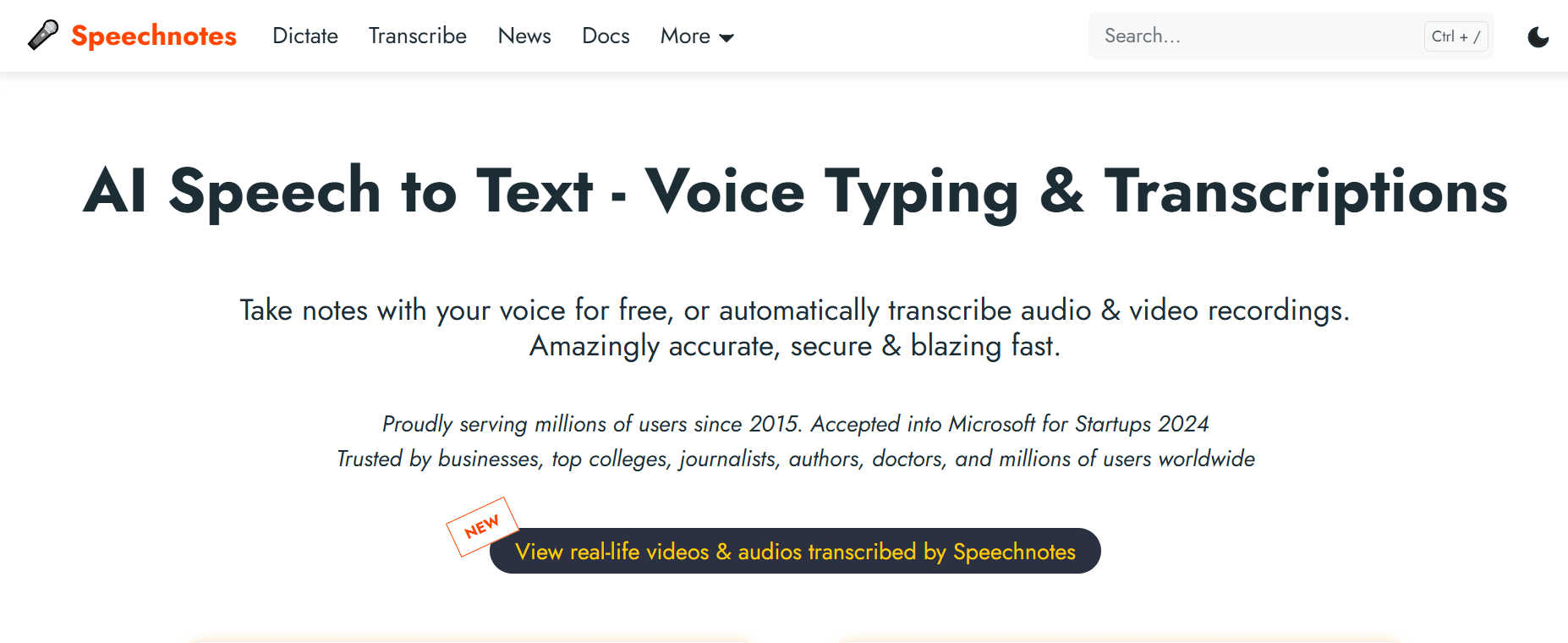
The Bottom Line: Speechnotes proves that simplicity wins. It's a clean, web-based and mobile notepad that starts transcribing the moment you open it. Its killer feature is offline capability on mobile—your audio never leaves your device, ensuring complete privacy.
Why It's a Top Pick: For pure, private, long-form dictation without AI frills, it's incredibly efficient and affordable.
Key Features: Zero-lag, instant transcription in the browser, fully functional offline mode on mobile, voice commands for punctuation and formatting, one-tap sharing to Google Drive.
Pros: Extremely simple, focused interface, true offline privacy, one-time, low-cost premium fee removes ads.
Cons: Lacks advanced AI features (summaries, speaker ID), free web version has banner ads.
Real-World Case: A Chicago-based blogger uses Speechnotes to draft blog posts, saving hours of typing each week while maintaining full control over their unpublished work.
Speechnotes — All Features Overview
Speechnotes is a simple digital notepad built for continuous dictation. It focuses purely on capturing long speeches without timing out or stopping unexpectedly. The platform is highly favored by writers and students who want distraction-free text generation.
- Continuous listening: The microphone stays active for long periods without turning off automatically.
- Offline mode: The mobile app works without an internet connection for maximum privacy.
- Auto-save function: Your text is saved automatically to prevent accidental data loss.
- Simple interface: The screen is essentially a blank piece of paper ready for your words.
Real-World Case - The Offline Drafting Test: We used Speechnotes to draft a long blog post on an airplane without Wi-Fi. It captured the words accurately. We did have to spend twenty minutes manually editing the text later because the app lacks smart formatting features.
Export anywhere and data privacy Using the app offline ensures your voice data never leaves your smartphone. You can easily share your finished text directly to Google Drive. The free web version does display highly distracting banner ads.
Who Should Skip Speechnotes
Speechnotes is simple reliable and privacy friendly , but it may feel too basic for advanced users
You might want to skip it if
- you want AI generated summaries or smart formatting
- you dislike manually editing your transcripts later
- you need collaboration tools for teams and meetings
- you prefer modern productivity features
- you want automatic organization tools
Speechnotes works best for writers students and users who want distraction free offline dictation
The Speechnotes Testing Verdict
- Transcription Accuracy: 8.5/10
- Ease of Use: 8/10
- Privacy & Security: 9/10
- Value for Money: 8/10
Final Verdict: is excellent for distraction-free offline dictation, while VoiceToNotes adds AI-powered summaries and formatting tools.
What Real Users Are Saying About Speechnotes Across the Web
- Google Play Store: "It catches my words perfectly but the banner ads in the free version are extremely annoying."
- Trustpilot: Reviewers love the offline capability but wish the software could summarize their thoughts.
4. Apple Dictation: The Effortless iOS Built-In
Best For: iPhone and iPad users looking for a free, system-wide dictation solution.
Pricing: Free with iOS/iPadOS.
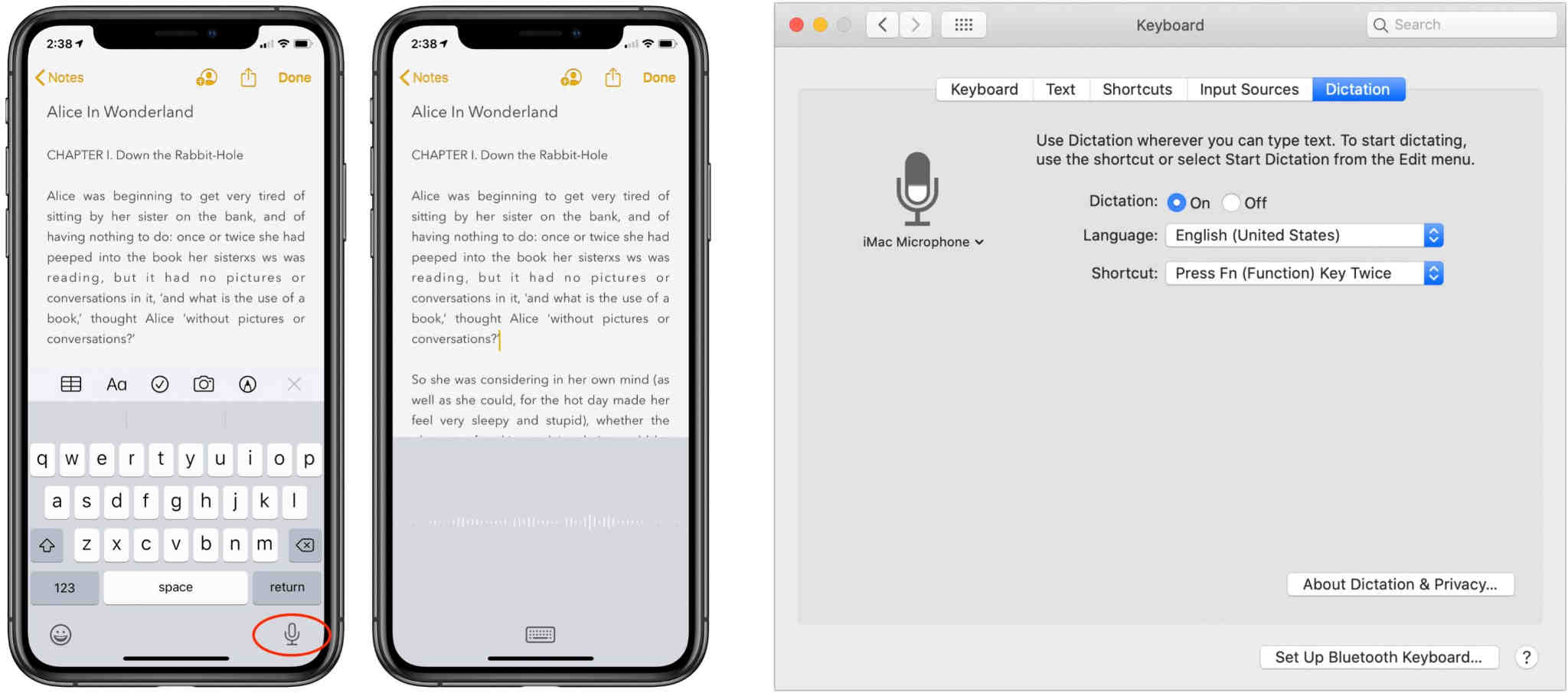
The Bottom Line: Apple Dictation is the definition of convenience. Activated by tapping the microphone key on the native keyboard, it lets you dictate text into any app instantly. With support for dozens of languages and seamless integration, it's a robust tool that requires no extra downloads or accounts.
Why It's a Top Pick: Every iPhone user should try this first. It's powerful enough for most everyday tasks and is always at your fingertips.
Key Features: System-wide dictation on any text field, supports over 30 languages, can be enhanced for offline use in Settings, basic voice commands for punctuation and editing.
Pros: Free and built into every Apple device, extremely easy to use, good privacy as part of the Apple ecosystem.
Cons: Less accurate than dedicated premium apps in noisy environments, lacks the advanced AI features (summaries) of standalone apps.
Real-World Case: A Boston lawyer uses Apple Dictation to draft contract clauses and client emails during their commute, seamlessly switching between typing and speaking.
Who Should Skip Apple Dictation
Apple Dictation is convenient and built directly into iPhones and Macs , but it is still a fairly basic dictation tool
You might want to skip it if
- you need highly organized notes and summaries
- you regularly dictate long documents
- you want advanced AI editing tools
- you work in noisy environments often
- you need collaboration or meeting transcription features
Apple Dictation works best for quick everyday typing on Apple devices
Apple Dictation — All Features Overview
Apple Dictation is the built-in voice typing tool found on every iPhone and iPad. It lives directly on your digital keyboard and activates with a single tap. The software supports dozens of languages out of the box.
- Native integration: Works instantly inside any app where you can type text.
- Offline processing: Newer iPhones process your voice data directly on the device.
- Multi-language support: Easily dictates in over 30 different global languages.
- Hands-free punctuation: You can insert periods and question marks by speaking them aloud.
Real-World Case - The Commute Test: We used Apple Dictation to reply to client emails while walking to the train station. It was incredibly fast to launch. The final text included all our awkward pauses and filler words making the email look highly unprofessional.
Export anywhere and data privacy Apple is famous for strict privacy standards. Your on-device dictation is highly secure and is not stored on external servers.
The Apple Dictation Testing Verdict
- Transcription Accuracy: 7/10
- Ease of Use: 7/10
- Privacy & Security: 8.0/10
- Value for Money: 10/10
Final Verdict: Apple Dictation offers unbeatable convenience for a quick text message. It is too basic for professional content creation. VoiceToNotes acts as your personal editor and transforms raw speech into polished professional content instantly.
What Real Users Are Saying About Apple Dictation Across the Web
- Reddit Forums: Apple users frequently note that the built-in dictation is fast but they hate having to manually dictate every single punctuation mark.
5. Just Press Record: The One-Tap Universal Recorder for Apple Users
Best For: iPhone, iPad, Apple Watch, and Mac users who want the fastest possible way to capture audio notes, interviews, or ideas with instant transcription.
Pricing: One-time purchase of approximately $4.99 (pricing may vary by region).
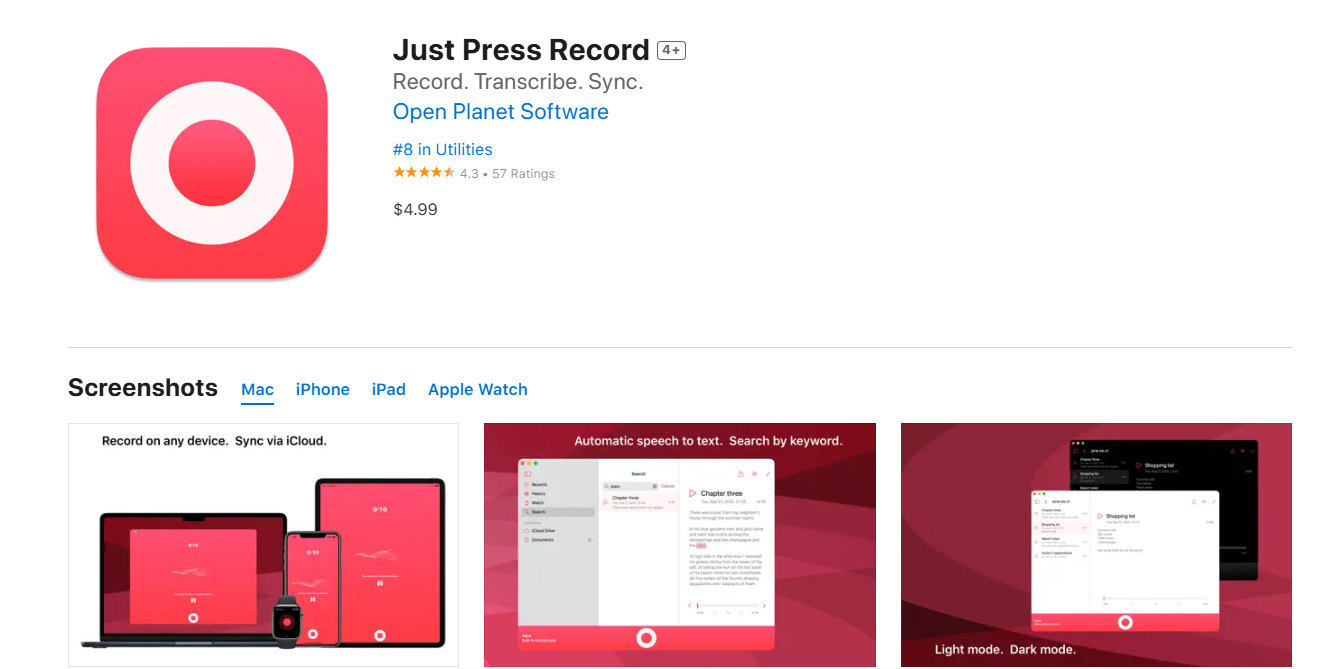
Why We Include It: For Apple ecosystem users, it's the gold standard for quick, private, and reliable audio capture with the bonus of immediate transcription, all for a small one-time fee.
Key Features: One-tap recording from any device screen or with a widget, real-time on-device transcription (iOS 13+), iCloud sync across all Apple devices, basic editing and organization of recordings.
Pros: Extremely fast and simple to use, transcription works fully offline for privacy, no subscriptions—just a single upfront payment.
Cons: Exclusively for the Apple ecosystem (no Android or web version), transcription is basic and lacks speaker identification or AI summaries.
Real-World Case: A journalist with an iPhone and Apple Watch uses Just Press Record to discreetly capture quick quotes during in-person interviews, getting both an audio backup and a rough transcript instantly on their devices.
Who Should Skip Just Press Record
Just Press Record is great for quick recordings inside the Apple ecosystem , but it is not built for heavy productivity workflows
You might want to skip it if
- you need advanced AI formatting features
- you use Android or Windows devices
- you want collaborative meeting tools
- you regularly create long structured documents
- you prefer all in one productivity apps
Just Press Record works best for Apple users who want simple fast voice recording and transcription
Just Press Record — All Features Overview
Just Press Record is an extremely popular premium application designed exclusively for the Apple ecosystem. It turns your iPhone or Apple Watch into a one-tap audio recorder. The app provides a basic transcript alongside every saved audio file.
- Apple Watch sync: Start recording a memo directly from your wrist instantly.
- iCloud backup: All your audio files and transcripts sync automatically across your Apple devices.
- One-tap recording: The widget allows you to start capturing audio without opening the full app.
- On-device transcription: Audio is converted to text locally without needing a cloud server.
Real-World Case - The Interview Test: We used the Apple Watch app to record a quick conversation. The audio quality was excellent and the text was generated immediately. The final transcript was just a massive block of unformatted words that required heavy manual editing.
Export anywhere and data privacy Your files are stored securely inside your personal iCloud account. You have full control over sharing your raw audio or text files to other applications.
The Just Press Record Testing Verdict
- Transcription Accuracy: 8/10
- Ease of Use: 8.5/10
- Privacy & Security: 8/10
- Value for Money: 7/10
Final Verdict: Just Press Record is ideal for fast Apple device recordings, while VoiceToNotes is better for turning recordings into polished notes.
What Real Users Are Saying About Just Press Record Across the Web
- App Store: "The Watch integration is flawless but I wish the app could generate bullet points or summaries from my recordings."
6. Gboard (Android): The Default (and Excellent) Android Voice Typist
Best For: Every Android user who wants fast, reliable, and free voice typing directly from their smartphone keyboard, anywhere.
Pricing: Free (pre-installed on most Android phones, available on Google Play).
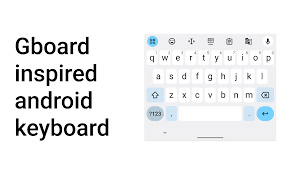
Why We Include It: It’s the most accessible and integrated voice-typing solution for Android. For most daily dictation tasks, it's all you need, removing the barrier of downloading a separate app.
Key Features: Fully integrated voice typing within the Gboard keyboard, works in virtually any app (social media, messengers, browsers), supports voice input for emoji search, learns and adapts to your voice over time.
Pros: Completely free and already on your phone, works universally across the Android OS, highly accurate and fast for short-to-medium dictation.
Cons: Requires an internet connection for best accuracy, not designed for long-form transcription or meeting notes, lacks advanced features like speaker ID or summaries.
Real-World Case: A busy parent uses Gboard's voice typing to quickly send text messages, search the web, and add items to a shopping list—all hands-free while managing household tasks.
Who Should Skip Gboard Voice Typing
Gboard is fantastic for fast daily typing , but it is not designed for long structured content
You might want to skip it if
- you regularly dictate long notes or articles
- you want AI summaries or cleanup tools
- you need meeting transcription features
- you dislike editing messy transcripts afterward
- you want organized note management
Gboard works best for quick replies searches and short daily tasks
Gboard — All Features Overview
Gboard is the default virtual keyboard for most Android smartphones. It features a highly advanced Google Voice Typing button that learns your specific voice patterns over time. The tool is designed for extreme speed during daily mobile tasks.
- Universal typing: Speak text directly into WhatsApp or an email draft effortlessly.
- Adaptive learning: The software adapts to your specific pronunciation habits over time.
- Emoji search: You can search for specific emojis using just your voice commands.
- Offline capabilities: Download specific language packs to dictate without a Wi-Fi connection.
Real-World Case - The Multitasking Test: We used Gboard to send chat messages while holding a cup of coffee. The word recognition was incredibly fast. Attempting to dictate a structured list of meeting notes proved impossible because the software provides zero formatting support.
Export anywhere and data privacy Gboard operates under standard Google privacy terms. There are no specialized export functions because the text simply appears in whatever app you are currently using.
The Gboard Testing Verdict
- Transcription Accuracy: 7/10
- Ease of Use: 10/10
- Privacy & Security: 7/10
- Value for Money: 10/10
Final Verdict: Gboard is the undisputed king of quick mobile texting. It is completely inadequate for drafting long or complex documents. VoiceToNotes offers the intelligent formatting and grammar correction that Gboard fundamentally lacks.
What Real Users Are Saying About Gboard Across the Web
- Google Play Store: "It types faster than my fingers ever could but you have to constantly go back and fix the grammar."
7. Dictation.io: The No-Install Web Tool
Best For: Users who need instant dictation on a laptop or tablet without installing any software.
Pricing: Free.
The Bottom Line: Dictation.io is a remarkably simple, browser-based tool that uses Google’s Speech Recognition engine. There is nothing to download—you just open the website, choose your language, and start talking. It functions like a simple online notepad that transcribes with high accuracy.
Why We Include It: It is the perfect "emergency" tool. If you are on a borrowed computer or don't want to install an app, this is the fastest way to get your thoughts down in text.
Key Features: Works directly in Google Chrome, supports 100+ languages, auto-save feature prevents data loss, simple formatting commands, easy export to email or plain text.
Pros:
- Completely free and requires no login or installation.
- Very lightweight and loads instantly.
- Visual "notepad" interface is easy to edit.
Cons:
- Only works in Google Chrome (or Chromium browsers).
- No mobile app version (strictly web-based).
- Basic feature set compared to AI suites.
Real-World Case: A freelancer working from a library computer uses Dictation.io to draft an article quickly without being able to install their usual software on the public machine.
Who Should Skip Dictation.io
Dictation.io is useful for fast browser based dictation , but it feels limited for serious long term workflows
You might want to skip it if
- you want a mobile app experience
- you need offline transcription
- you want cloud sync between devices
- you need advanced AI productivity features
- you regularly work with team collaboration
Dictation.io works best for quick web based dictation sessions on desktop
Dictation.io — All Features Overview
Dictation.io is a remarkably simple browser tool that requires zero software installation. It uses the powerful Google Speech Recognition engine to capture your voice directly through Google Chrome. The interface mimics a clean sheet of lined notebook paper.
- Browser native: Works instantly inside Google Chrome without any downloads or account sign-ups.
- Global languages: Supports dictation in over 100 different languages and regional dialects.
- Auto-save feature: Your session is temporarily saved in the browser to prevent sudden data loss.
- Simple text editor: Includes basic tools to copy or print your finished text easily.
Real-World Case - The Emergency Test: We used this tool on a borrowed library laptop to quickly draft a document. It functioned perfectly and required no technical setup. We were unable to sync the document to our smartphone later because the service does not offer a mobile application.
Export anywhere and data privacy The text remains in your browser until you clear your cache. You must manually copy and paste the text to save it permanently. The tool requires a live internet connection to process your speech.
The Dictation.io Testing Verdict
- Transcription Accuracy: 8.5/10
- Ease of Use: 7/10
- Privacy & Security: 7/10
- Value for Money: 10/10
Final Verdict: Dictation.io is convenient for quick browser-based dictation, while VoiceToNotes provides a more complete cross-platform workspace.
What Real Users Are Saying About Dictation.io Across the Web
- Reddit Forums: Freelancers recommend it for quick web tasks but find the lack of cloud saving highly frustrating for long-term projects.
8. Dragon Anywhere: The Professional's Precision Tool
Best For: Legal, medical, and academic professionals where terminology precision and flawless formatting are non-negotiable.
Pricing: $15/month subscription.
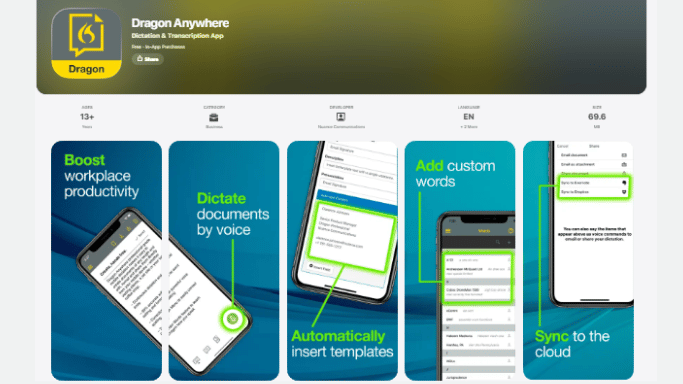
The Bottom Line: Dragon by Nuance is the industry standard for a reason. It offers unmatched out-of-the-box accuracy (up to 99%) and deep customization. You can train it on specific jargon and use complex voice commands to format entire documents hands-free.
Why It's a Top Pick: When absolute accuracy and control are worth the price, nothing else comes close. It's a productivity powerhouse for experts who dictate daily.
Key Features: Industry-leading speech recognition engine, create and import custom vocabulary lists, advanced voice commands for formatting and editing, syncs customizations across mobile and desktop.
Pros: The most accurate engine available, highly customizable for specialized fields, powerful voice command library for document control.
Cons: Expensive subscription model, interface can feel dated, primarily focused on English dictation.
Real-World Case: A Dallas law firm uses Dragon Anywhere for deposition dictation, cutting transcription turnaround time by 70% and ensuring perfect legal terminology.
Who Should Skip Dragon Anywhere
Users looking for simpler and more beginner-friendly options may want to explore some of the best AI tools and apps in 2026, many of which combine transcription, note-taking, and automation in a single platform.
You might want to skip it if
- you want a simple beginner friendly interface
- budget is important to you
- you only use voice typing occasionally
- you dislike voice formatting commands
- you want modern AI summaries and cleanup tools
Dragon Anywhere works best for lawyers doctors researchers and professionals who need maximum transcription accuracy
Dragon Anywhere — All Features Overview
Dragon Anywhere by Nuance is the legacy giant of the dictation world. It is strictly built for professionals like lawyers, doctors, and academics who need absolute precision for complex industry terminology.
- Custom vocabulary: You can manually teach the software specific legal, medical, or technical jargon.
- Voice-driven formatting: You must use specific voice commands to edit your text (e.g., "Select that", "Bold next word").
- Continuous dictation: It handles extremely long dictation sessions without timing out.
- Cloud sync: Documents sync across your mobile device and the Dragon desktop software.
Real-World Case - The Legal Brief Test: We dictated a complex legal summary using heavy industry jargon. Dragon nailed the terminology perfectly. However, the process felt robotic. We had to constantly say "comma," "new paragraph," and "delete that" to get a clean document, which slowed down our natural train of thought.
Export anywhere and data privacy Dragon offers excellent export options to Microsoft Word and email. However, you are paying a premium price for a service that requires a constant internet connection on mobile.
The Dragon Anywhere Testing Verdict
- Transcription Accuracy: 9.5/10
- Ease of Use: 5/10
- Privacy & Security: 8/10
- Value for Money: 4/10
Final Verdict: Dragon Anywhere delivers extremely high transcription accuracy, while VoiceToNotes offers a simpler and more affordable experience for general users.
What Real Users Are Saying About Dragon Anywhere Across the Web
- App Store: "The accuracy is unmatched for my medical notes, but the app crashes more often than a $15/month subscription should allow."
- Trustpilot: Verified users frequently praise the custom vocabulary but criticize the outdated mobile interface and lack of modern AI summarizing tools.
- Reddit Forums: In r/Lawyers, professionals respect the engine but admit that paying a high monthly fee just to dictate emails feels completely unjustified in the modern AI era.
9. Transcribe: The Streamlined Audio-to-Text Converter
Best For: Individuals, students, or professionals who need a straightforward, purpose-built app to convert saved audio recordings—like interviews, lectures, or voice memos—into text.
Pricing: Freemium model; free tier with limited features, with premium one-time purchases or subscriptions typically ranging from $5 – $20.
The Bottom Line: Transcribe is a focused utility app that does one job well: turning your stored audio files into editable text documents. It's less about real-time dictation and more about processing conversations or notes you've already recorded, offering a clean bridge between audio capture and written work.
Why We Include It: It serves a specific need that general voice typing apps don't—efficiently transcribing pre-existing recordings from various sources, which is invaluable for review and content creation.
Key Features: Import audio files from your device or cloud storage, playback controls synced with the transcript, basic text editing and export, support for multiple languages.
Pros: Simple, intuitive interface for a single task, useful for working with audio from different recorders or meetings, more affordable than enterprise-grade transcription services.
Cons: Not designed for live, real-time dictation, accuracy can vary significantly with recording quality, lacks the advanced AI (like smart summaries) found in newer, broader platforms.
Real-World Use Case: A student records a guest lecture on their phone, uploads the file to Transcribe, and gets a readable text document to study from, saving hours of manual note-taking.
Who Should Skip Transcribe
Transcribe is useful for converting audio files into text , but it is not ideal for live voice typing workflows
You might want to skip it if
- you mainly dictate live thoughts and ideas
- you want automatic summaries or AI organization
- you dislike paying for audio processing time
- you need collaboration tools
- you want quick everyday voice typing
Transcribe works best for interviews lectures and pre recorded audio files
Transcribe — All Features Overview
Transcribe is a specialized utility app focused on converting existing audio files into written text. It is heavily utilized by journalists and university students who need to process recorded lectures or long interviews.
- Audio file importing: Upload existing voice memos or video files directly from your smartphone.
- Integrated playback: Control the audio playback speed while reviewing your generated transcript.
- High language compatibility: The engine processes speech in over 80 different languages accurately.
- Manual correction tools: Offers a dedicated text editor to easily fix specific misheard words.
Real-World Case - The Lecture Test: We uploaded a recorded college lecture into the application. The software provided a highly accurate transcript. We still had to read through the entire document to highlight the key takeaways because the app does not feature an AI summarization tool.
Export anywhere and data privacy You can export your finished transcripts as standard text files. The pricing model often involves paying hourly rates for audio processing which can become quite expensive.
The Transcribe Testing Verdict
- Transcription Accuracy: 8.5/10
- Ease of Use: 7.5/10
- Privacy & Security: 8/10
- Value for Money: 6/10
Final Verdict: Transcribe works well for converting recorded audio into text, while VoiceToNotes is more useful for live idea capture and note organization.
What Real Users Are Saying About Transcribe Across the Web
- App Store: "The transcription is very accurate for interviews, but paying per hour of audio gets very expensive very fast."
10. Microsoft Dictate: The Integrated Office Dictation Tool
Best For: Professionals and businesses already embedded in the Microsoft 365 ecosystem (Word, Outlook, PowerPoint) who need reliable, built-in dictation.
Pricing: Included with a Microsoft 365 subscription (from ~$6.99/month).
The Bottom Line: Microsoft Dictate is the productivity-focused dictation feature built directly into Microsoft 365 apps like Word, Outlook, and PowerPoint. It offers robust, no-fuss speech-to-text for users who need to create documents, emails, and presentations without leaving their primary work suite.
Why We Include It: For the millions of users who work in Microsoft Office daily, this is the most logical and seamless dictation tool. It turns the Dictate button into a natural extension of the ribbon toolbar.
Key Features: Native integration in Word, Outlook, and PowerPoint, voice commands for punctuation and formatting (“period,” “bold that,” “new line”), real-time transcription, support for multiple languages and dialects, optional automatic punctuation.
Pros: Deeply integrated and stable within the Microsoft 365 apps you already use, leverages Microsoft’s enterprise-grade speech recognition, no need to switch between apps or copy/paste text.
Cons: Only works within the Microsoft 365 application suite (not system-wide), requires a paid Microsoft 365 subscription, lacks the advanced AI summaries and meeting-specific features of dedicated tools.
Real-World Case: A corporate manager uses Microsoft Dictate in Outlook to quickly voice-draft lengthy emails and in Word to compose reports, streamlining documentation within the company’s standardized Office workflow.
Who Should Skip Microsoft Dictate
Microsoft Dictate is powerful inside the Microsoft ecosystem , but it can feel restrictive outside of it
You might want to skip it if
- you do not use Microsoft 365 regularly
- you want a standalone mobile app
- you prefer flexible cross platform workflows
- you need AI summaries and note organization
- you want advanced meeting transcription tools
Microsoft Dictate works best for professionals already working inside Word Outlook and Microsoft Office every day
Microsoft Dictate — All Features Overview
Microsoft Dictate is the native speech-to-text feature embedded inside the Microsoft 365 ecosystem. It allows corporate professionals to dictate directly into Word documents or Outlook emails using enterprise-grade voice recognition.
- Deep Office integration: Works flawlessly inside Word and PowerPoint without opening a separate window.
- Auto-punctuation: The software attempts to add basic punctuation automatically as you speak.
- Voice formatting: You can use specific voice commands to start a new line or bold a word.
- Corporate security: Operates under the strict privacy protocols of Microsoft enterprise software.
Real-World Case - The Corporate Report Test: We dictated a full page of a business report directly into Microsoft Word. The tool captured the corporate terminology accurately. The moment we tried to use the tool outside of the Microsoft ecosystem we realized we were completely locked out.
Export anywhere and data privacy Your files are secured within your OneDrive account. You must maintain an active Microsoft 365 subscription to access the full features of the dictation service.
The Microsoft Dictate Testing Verdict
- Transcription Accuracy: 9/10
- Ease of Use: 8.5/10
- Privacy & Security: 9/10
- Value for Money: 6/10
Final Verdict: Microsoft Dictate integrates smoothly with Microsoft 365 apps, while VoiceToNotes gives users more flexibility outside the Microsoft ecosystem.
What Real Users Are Saying About Microsoft Dictate Across the Web
- G2 Reviews: "It makes drafting emails in Outlook much faster but I wish they offered a standalone mobile app for quick notes."
11. Otter.ai: The Essential Meeting Transcription Hub
Best For: Teams, students, and professionals who need automated, shareable notes from Zoom, Google Meet, or Microsoft Teams calls.
Pricing: Free plan (300 min/month); Pro plan from $16.99/month.
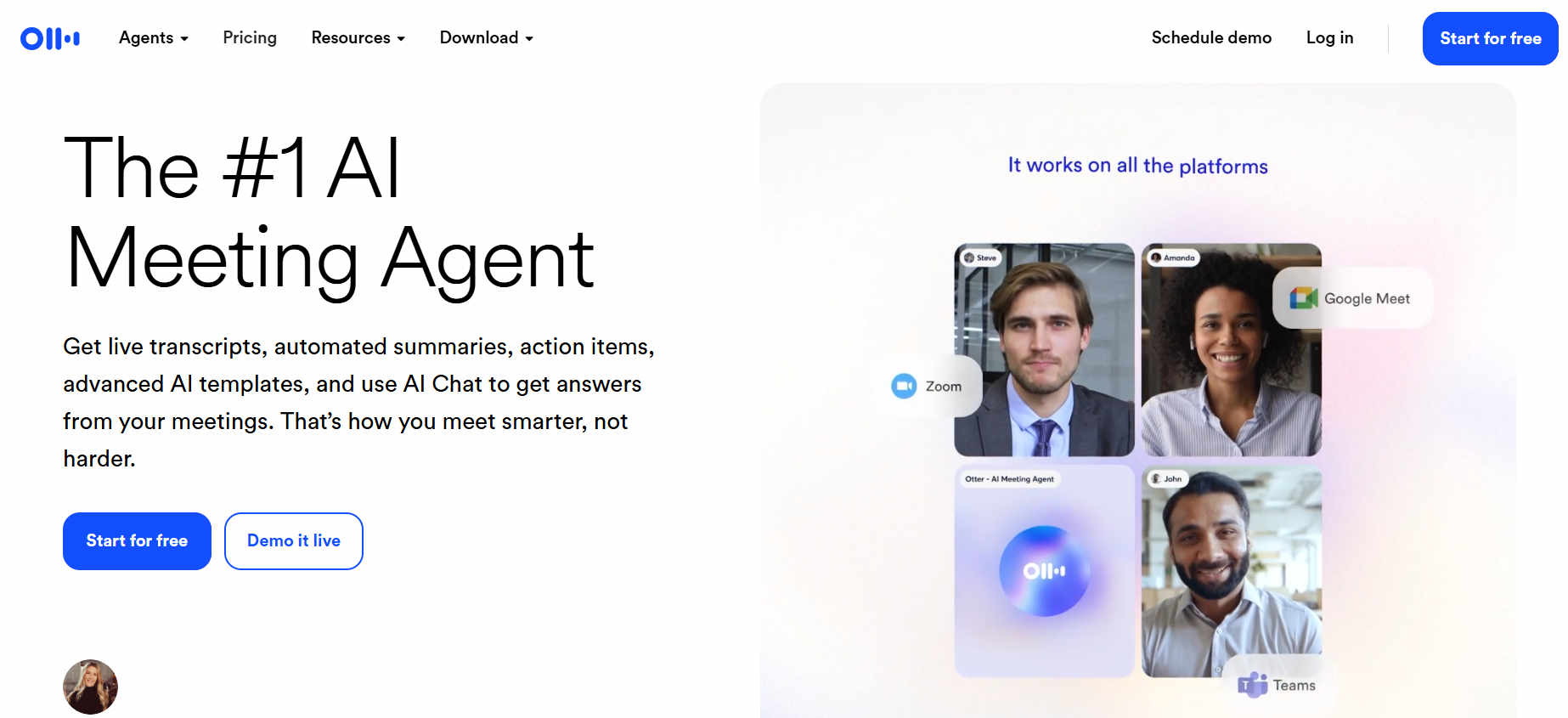
Why It's a Top Pick: If your workflow is meeting-centric, Otter will save you hours of manual note-taking and follow-up work.
Key Features: Direct integration with Zoom, Teams, and Google Meet, real-time transcription with speaker identification, collaborative editing and commenting, searchable transcript library.
Pros: Best-in-class meeting integrations, powerful collaboration features, generous free tier to start.
Cons: Audio is processed and stored in the cloud, accuracy can drop in noisy environments.
Real-World Case: A marketing agency in Brooklyn uses Otter to transcribe all client calls, saving an estimated 5 hours per week on note-taking and follow-ups.
Who Should Skip Otter.ai
Otter.ai is excellent for meetings and team calls , but it can feel too heavy for casual users
You might want to skip it if
- you mainly record personal notes or ideas
- privacy is your biggest concern
- you want lightweight quick dictation
- you dislike cloud based recording systems
- you rarely join online meetings
Otter.ai works best for remote teams students and professionals who spend hours in Zoom or Google Meet calls
Otter.ai — All Features Overview
Otter.ai is built for the corporate world. It joins your Zoom or Microsoft Teams meetings, listens to the conversation, and generates a live transcript. The primary focus is on team collaboration, allowing multiple users to highlight text and leave comments on the same transcript simultaneously.
- Live meeting transcription: Otter actively records and transcribes long meetings in real-time.
- Automated speaker identification: The software separates the text based on who is speaking during the call.
- Team workspaces: You can share meeting folders with your colleagues for collaborative editing.
- Zoom and Teams integration: Otter connects to your calendar to automatically join scheduled video calls.
Real-World Case - The Corporate Meeting Test: We used Otter during a one-hour team meeting. It captured the conversation well and identified the speakers. However, when we just needed a quick summary of our own personal action items, we had to scroll through pages of a cluttered, multi-person transcript to find what mattered.
Export anywhere and data privacy Otter stores your audio and transcripts on their cloud servers. While this is great for team access, it raises concerns for highly confidential information. You can export files, but your voice data is processed externally.
The Otter.ai Testing Verdict
- Transcription Accuracy: 8.5/10
- Ease of Use: 8/10
- Privacy & Security: 6/10
- Value for Money: 7/10
Final Verdict: Otter.ai is excellent for team meetings and speaker identification, while VoiceToNotes feels more lightweight for personal notes and solo workflows.
What Real Users Are Saying About Otter.ai Across the Web
- Google Play Store: "Great for my online classes. Sometimes the app freezes if the meeting goes over two hours." (Rated 4.3/5).
- G2 Reviews: "The transcription is good, but they recently changed their pricing model. The free tier is much more restricted now, and my past meetings are locked behind a paywall."
- Reddit Forums: Users in r/productivity frequently complain about the aggressive upsells and the shrinking free minutes. Many are actively searching for a private tool that does not force cloud storage.
12. Google Recorder: The Pixel-Exclusive Offline Gem
Best For: Google Pixel owners who need accurate, fully offline transcription.
Pricing: Free (exclusively for Pixel phones).
The Bottom Line: Google Recorder is a hidden gem that showcases the power of on-device AI. It records audio and generates a searchable, timestamped transcript completely offline, meaning your data never leaves your phone. The transcription quality for English is exceptional, but its availability is strictly limited.
Why It's a Top Pick: If you own a Pixel and value privacy and offline utility, this app is a must-use and comes pre-installed.
Key Features: 100% offline transcription (no internet needed), search within transcripts to find specific moments, timestamped transcription synced to audio playback, clean, simple interface.
Pros: Unbeatable for privacy and offline use, surprisingly accurate for on-device processing, perfectly integrated into the Pixel experience.
Cons: Only available on Google Pixel phones, limited language support compared to cloud-based apps.
Real-World Case: A researcher uses Google Recorder to document field interviews in areas with no cellular service, relying on its perfect offline functionality.
Who Should Skip Google Recorder
Google Recorder is incredibly impressive for offline transcription , but it is limited in a few important ways
You might want to skip it if
- you do not own a Google Pixel device
- you want AI summaries and formatting tools
- you need advanced collaboration features
- you want cross platform syncing
- you regularly create polished professional documents
Google Recorder works best for Pixel users who want private offline transcription
Google Recorder — All Features Overview
Google Recorder is an exclusive application available only to Google Pixel smartphone owners. It showcases the immense power of on-device machine learning by generating highly accurate transcripts completely offline.
- True offline processing: Generates perfect text without sending any data to a cloud server.
- Audio search: You can search for a specific spoken word and jump exactly to that moment in the audio.
- Speaker labels: The app attempts to separate the transcript when different people are talking.
- Pixel integration: Works seamlessly with the Pixel hardware for optimal microphone performance.
Real-World Case - The Field Research Test: We used the app to record a conversation in a remote location with zero cellular service. The transcription was incredibly fast and accurate. The final output was strictly a literal transcript lacking any smart AI summaries or bullet points.
Export anywhere and data privacy The privacy is completely unmatched because the data never leaves your physical phone. You can export the audio and text easily to Google Drive when you reconnect to Wi-Fi.
The Google Recorder Testing Verdict
- Transcription Accuracy: 9.5/10
- Ease of Use: 8/10
- Privacy & Security: 8/10
- Value for Money: 8/10 (Requires buying a Pixel phone)
Final Verdict: Google Recorder is impressive for offline transcription on Pixel devices, while VoiceToNotes adds advanced AI formatting and broader device support.
What Real Users Are Saying About Google Recorder Across the Web
- Reddit Forums: Pixel users on r/GooglePixel constantly praise the offline accuracy but wish the app had an AI button to summarize long recordings automatically.
13. ClickUp AI: Where Dictation Meets Task Management
Best For: Teams and project managers who want to turn spoken ideas directly into tasks and structured documents.
Why It's a Top Pick: It's ideal for those who need dictation to feed directly into execution, eliminating the step between note-taking and task creation.
Key Features: Dictate notes, tasks, or documents within ClickUp, AI automatically structures text and creates to-do lists, deep integration with ClickUp's project management features (assignees, due dates, priorities).
Pros: Closes the gap between ideation and action, excellent for team collaboration within a shared workspace, enhances an already powerful productivity platform.
Cons: Only valuable if you use (or plan to use) ClickUp as your project hub, AI features can feel less polished than dedicated transcription tools.
Real-World Case: A Miami-based startup team uses ClickUp AI in their daily stand-up meetings; spoken updates are instantly turned into assigned tasks with deadlines, streamlining their entire workflow.
Who Should Skip ClickUp AI
ClickUp AI is powerful for productivity teams , but it can feel overwhelming for regular users
You might want to skip it if
- you only need simple voice typing
- you dislike project management interfaces
- you work mostly alone instead of with teams
- you want lightweight distraction free dictation
- you do not already use ClickUp
ClickUp AI works best for businesses startups and teams managing projects every day
ClickUp AI — All Features Overview
ClickUp AI represents a new wave of dictation tools built directly into existing project management software. It allows teams to dictate meeting updates and instantly convert those spoken words into trackable assigned tasks.
- Task generation: Automatically pulls action items from your voice notes and creates project tickets.
- Deep platform integration: Assign due dates and tag team members based on your spoken instructions.
- Status updates: Quickly dictate a summary of your daily progress for your manager to review.
- Team collaboration: The transcribed notes live directly inside your shared corporate workspace.
Real-World Case - The Standup Meeting Test: We dictated our daily progress update into the ClickUp mobile app. It successfully summarized our update and created a task for a pending project. Trying to use the app to draft a personal blog post felt incredibly clunky due to the heavy project management interface.
Export anywhere and data privacy Your data is locked deeply inside the ClickUp corporate environment. Exporting personal notes out of the platform is tedious and inefficient.
The ClickUp AI Testing Verdict
- Transcription Accuracy: 8/10
- Ease of Use: 7/10
- Privacy & Security: 8/10
- Value for Money: 7/10
Final Verdict: ClickUp AI works well for teams managing projects and tasks, while VoiceToNotes is more focused on personal productivity and content creation.
What Real Users Are Saying About ClickUp AI Across the Web
- G2 Reviews: "The AI features definitely speed up creating tasks but the dictation feels a bit basic compared to dedicated voice applications."
14. Notta: The All-in-One AI Meeting Assistant & Transcriber
Best For: Remote teams, students, and professionals who need to record, transcribe, and summarize online meetings (Zoom, Google Meet, Teams) or live interviews automatically.
Pricing: Free plan available (limited minutes); Paid plans start at $13.99/month.
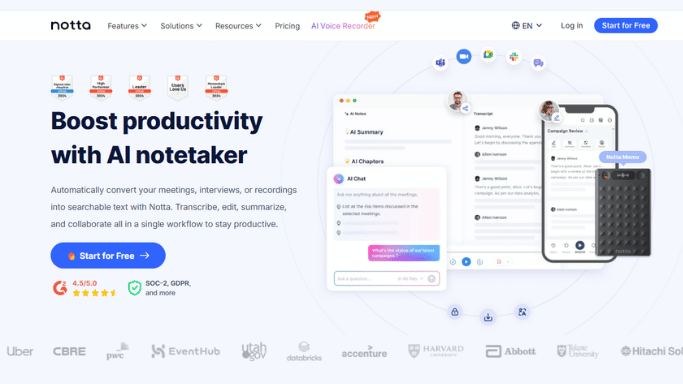
The Bottom Line: Notta transforms how you handle meetings by not just transcribing them, but understanding them. It acts as a dedicated note-taker that records, transcribes, and uses advanced AI to generate concise summaries and action items in real-time, allowing you to focus entirely on the conversation.
Why It's a Top Pick: Its seamless integration is unmatched—the "Notta Bot" can automatically join your scheduled video calls to record and transcribe without you lifting a finger.If you hate taking meeting notes but need accurate records, Notta is the ultimate solution.
Key Features: Automated "Notta Bot" for Zoom/Google Meet/Teams, AI-generated summaries with "Action Items" detection, real-time transcription with speaker identification, supports 104 languages, cross-platform sync (Web, Mobile, Chrome Extension).
Pros: Exceptionally high accuracy (up to 98.6%), powerful AI summarization saves hours of post-meeting work, separates speakers clearly, and offers a smooth mobile app experience.
Cons: The free version is limited in monthly transcription minutes, and advanced AI features require a paid subscription.
Real-World Case: A Remote Project Manager uses Notta to automatically join and record weekly sprint planning meetings on Zoom. Instead of manually typing notes, she simply reviews the AI-generated "Action Items" list and shares it with the engineering team immediately after the call ends.
Who Should Skip Notta
Notta is strong for AI meeting transcription and summaries , but it is not ideal for everyone
You might want to skip it if
- you only need quick personal dictation
- you dislike AI bots joining your meetings
- you are worried about cloud privacy
- you want generous free usage limits
- you rarely attend online meetings
Notta works best for remote workers teams and professionals handling frequent virtual meetings and interviews
Notta — All Features Overview
Notta is an aggressive newcomer in the AI meeting space. It focuses heavily on acting as your personal administrative assistant by automatically generating meeting minutes and action items after a call ends.
- Notta Bot: An automated bot that joins your video calls to take notes so you can focus on the camera.
- Multi-language support: Excellent translation and transcription features across 100+ languages.
- AI Summaries: Automatically generates a short overview of long conversations.
- Screen recording: Allows you to capture video alongside your audio notes on desktop.
Real-World Case - The Client Interview Test: We scheduled the Notta bot to join a client interview. It successfully recorded and summarized the call. However, the client felt slightly uncomfortable seeing an AI bot named "Notta" sitting in the participant list, which shifted the tone of the meeting.
Export anywhere and data privacy Notta gives you good export options, but the heavy reliance on an automated bot means your audio is definitely passing through external servers. The free tier also heavily restricts your export capabilities.
The Notta Testing Verdict
- Transcription Accuracy: 9/10
- Ease of Use: 8.5/10
- Privacy & Security: 7/10
- Value for Money: 6.5/10
Final Verdict: Notta is strong for meeting summaries and virtual calls, while VoiceToNotes is better suited for quick personal voice notes and flexible AI formatting.
What Real Users Are Saying About Notta Across the Web
- Google Play Store: "The summaries are a lifesaver for my weekly meetings. The translation feature works surprisingly well for Spanish to English."
- G2 Reviews: "I love the software, but the free trial is extremely limited. You hit your quota in just one or two meetings, and then you are forced to upgrade to a pricey tier."
- Reddit Forums: Users appreciate the AI features but constantly warn others about the strict paywalls. The consensus is that Notta is great if your company pays for it, but too expensive for an individual freelancer.
How Voice To Text Apps Work?
Voice to text apps use special technology to understand your voice. Here is how they do it:
First, the app listens to your voice through your phone's microphone. It records the sounds you make when you speak.
Next, the app breaks down these sounds into small pieces. It looks at each sound to figure out what letter or word it might be.
Then, the app uses its smart brain to put these sounds together into words. It also tries to understand what you mean by looking at all the words together.
Finally, the app writes the words on your screen. Some apps can learn how you speak over time. This makes them better at understanding you.
Best Voice to Text Apps by Use Case
| Use Case | Recommended App | Why It Stands Out |
|---|---|---|
| Best Overall Experience | VoiceToNotes.ai | Combines transcription, AI organization, OCR scanning, summaries, and note management in a single workflow. |
| Students | VoiceToNotes.ai | Helpful for organizing lectures, study notes, summaries, and revision material. |
| Content Creators | VoiceToNotes.ai | Makes it easier to turn spoken ideas into structured content and drafts. |
| Everyday Personal Notes | VoiceToNotes.ai | Fast note capture with AI-powered organization and search capabilities. |
| Meetings & Collaboration | Otter.ai | Strong speaker identification and collaborative meeting workflows. |
| AI Meeting Assistant | Notta | Designed around meeting summaries, action items, and meeting automation. |
| Offline Privacy | Google Recorder | Fully offline transcription experience for Pixel users. |
| Professional Dictation | Dragon Anywhere | Built for users who prioritize terminology accuracy and advanced dictation controls. |
| Everyday Voice Typing | Gboard / Apple Dictation | Fast, built-in, and available instantly on most devices. |
Why We Didn't Choose One App for Everyone
The best voice-to-text app depends on how you plan to use it.
A student recording lectures has different needs than a professional attending daily meetings. Likewise, a content creator brainstorming ideas requires different features than someone who simply wants quick voice typing.
Instead of declaring a single winner for every situation, we focused on matching each app to the workflows where it delivers the most value.
For users looking for an all-in-one solution that combines transcription, AI-powered organization, note management, OCR scanning, and cross-platform accessibility, VoiceToNotes.ai offers the most complete overall experience.
However, users with meeting-focused workflows may find dedicated platforms such as Otter.ai or Notta better suited to their specific needs.
Best Voice to Text App for Students
Recommended, VoiceToNotes.ai
Students usually need more than basic speech to text, they need properly organized notes that are easy to revise later
During testing, this became very obvious because many apps converted speech into text accurately, but the final result looked like one huge, messy paragraph
VoiceToNotes.ai worked better for students because it automatically organized spoken thoughts into
- lecture summaries
- bullet points
- important ideas
- action items
It felt especially useful during
- online classes
- lecture recordings
- assignment brainstorming
- revision sessions
The OCR scanner was also surprisingly useful for converting handwritten notes and textbook pages into editable text
If you only need quick typing, Gboard is more than enough, but for daily study workflows, the AI organization tools felt genuinely helpful
Best Voice to Text App for Meetings and Team Calls
Recommended, Otter.ai
Otter.ai felt strongest during meetings because it handled multiple speakers much better than most other apps
During Zoom and Google Meet testing , Otter automatically identified who was speaking , which made reviewing long conversations much easier later
It works especially well for
- remote teams
- office meetings
- client calls
- interviews
- online classes
Otter’s biggest strength is collaboration
If most of your work revolves around meetings, it genuinely reduces the stress of manual note taking and follow-ups
However, for personal notes or solo brainstorming, it can sometimes feel slightly too corporate and cluttered
Best Voice to Text App for Content Creators and Bloggers
Recommended, VoiceToNotes.ai
Content creators usually think much faster than they type
That is exactly why VoiceToNotes.ai stood out during testing because you can speak naturally for a few minutes and let the AI turn those rough thoughts into properly structured content
It worked especially well for
- blog outlines
- captions
- YouTube scripts
- social media ideas
- email drafts
The Custom Prompt feature was also very useful because creators could directly tell the AI how they wanted the final content formatted
For example
- turn this into a LinkedIn post
- rewrite this professionally
- convert this into a YouTube script
This made the workflow feel much faster compared to traditional dictation apps that only provide raw text
Best Offline Voice to Text App for Privacy
Recommended: Google Recorder and Speechnotes
Some people care more about privacy than advanced AI features
That is where Google Recorder and Speechnotes both performed very well
Google Recorder
Google Recorder was especially impressive because it worked completely offline on Pixel devices
Even without internet access , the transcripts were surprisingly accurate
It worked especially well for
- journalists
- researchers
- travelers
- private recordings
The biggest advantage is that your audio never needs to leave your phone
Speechnotes
Speechnotes is much simpler , but it felt very reliable for distraction free dictation sessions
Writers and students who prefer long form voice typing without interruptions will probably enjoy its clean experience
Neither app offers advanced AI formatting tools , but for offline transcription and privacy , both are genuinely strong choices
Best Free Voice to Text App
Recommended, Gboard
For completely free daily voice typing , Gboard is still one of the easiest options available
The reason is simple , it already comes installed on most Android phones and works instantly inside almost every app
During testing , it performed especially well for
- WhatsApp replies
- Google searches
- quick notes
- short emails
You simply tap the microphone and start speaking
The downside is that longer recordings quickly become messy because Gboard does not organize or clean the text afterward
That is why Gboard feels excellent for casual everyday use , but dedicated AI apps still perform much better for structured professional content
Best Voice to Text App for Professional Accuracy
Recommended, Dragon Anywhere
Dragon Anywhere is not really built for casual users
It is designed for professionals who need highly accurate transcription without mistakes
During testing , it performed especially well with
- legal terminology
- medical vocabulary
- technical language
That is one of the biggest reasons many lawyers and medical professionals still rely on Dragon despite its expensive pricing
The downside is that the interface feels more technical and slightly outdated compared to newer AI tools
But if maximum accuracy matters more than simplicity , Dragon Anywhere is still one of the strongest professional dictation tools available
Why Voice To Text Apps Are Exploding in 2026
Voice typing isn’t just a trend it’s becoming a daily habit. Consider these numbers:
- 153.5 million Americans are using voice assistants in 2026.
- The voice recognition market has surged to over $53 billion.
- 56% of smartphone users already rely on voice for daily tasks.
Imagine this: You're in the middle of a Zoom call, juggling emails, when a brilliant idea hits you. Are you really going to stop and type it out? Most of us wouldn’t. That’s why voice typing has quickly become a must-have productivity hack.
In 2026, it’s not just about turning speech into text. The best tools now generate instant transcripts, create concise AI summaries, correct grammar, and even adapt the tone of your content—making your words ready for action immediately.
- Doctors use it for patient notes.
- Students use it for lecture transcripts.
- Executives use it to record meetings.
- Content Creators use it to capture ideas on the go.
But with so many apps out there, finding the right one is overwhelming. You shouldn’t have to download and test app after app. That’s where we come in.
Below is our handpicked selection of the best apps, complete with features, pricing, pros, and cons—so you can find your perfect match in minutes.
How to get the best results from your voice to text software
Think of dictation apps like a new assistant. They are very smart but they need the right setup to do a good job. You can do a few simple things to help the software hear you perfectly.
Getting good results starts before you even begin to speak. You need to prepare your workspace and your tools first. This makes the whole process much smoother for you and the artificial intelligence.
The environment around you matters just as much as the app you choose. The software needs clean audio to understand your words accurately. You will spend much less time fixing errors if you set up your workspace correctly.
- Stop using the microphone built into your phone or your laptop.
- Buy a basic headset or a dedicated external microphone.
- Control your background noise by finding a quiet room.
- Close your doors and windows to block out traffic sounds.
- Turn off your television and pause your background music.
- Fix any mistakes the app makes while you are working.
- Typing in the correct words teaches the software your specific vocabulary.
Taking a few minutes to improve your setup changes everything. The app will learn your voice faster. You will get your work done much quicker this way.
Tips for better speaking habits for using Speech To Text Software
Once your setup is ready, you just need to practice how you talk to the app. Good speaking habits will save you a huge amount of editing time later.
You will get much better at this the more you practice. Speaking to an app feels weird at first, but it gets much easier every day.
You need to adjust your speaking style just a little bit. The software listens to the rhythm of your voice to understand the meaning of your words. You can help the software type perfectly by using these simple speaking techniques.
- Speak clearly in a natural and steady voice.
- Do not slow down too much or try to sound like a robot.
- Speak in full thoughts because the app uses context to figure out what you are saying.
- Say your punctuation out loud as you go so your text stays clean.
- Think in short sentences when you are first starting out.
- Take a deep breath and gather your thoughts before you start talking again.
- Always check your final text when you are done writing.
Even the best software makes silly mistakes sometimes. Reading over your work is always the best way to catch errors. Soon, these simple daily speaking habits will feel completely natural to you.
Voice Typing vs Regular Typing
Voice typing is much faster than typing with your fingers. According to a recent Keywords Everywhere blog post and general usage data talking to your device provides a massive speed advantage.
This shift in user behavior is highly important for your Search Engine Optimization and App Store Optimization strategies.
- Most people can easily speak 125 to 150 words per minute.
- The average person can only type about 40 words per minute using their fingers.
- There are 7.34 billion smartphone users worldwide in 2026.
- Millions of these mobile users are switching to voice typing because of the incredible speed.
- Recent data shows that 41 percent of adults in the US use voice search on a daily basis.
- Almost 90 percent of people find voice search much easier than typing a query online.
- Around 71 percent of consumers actually prefer using voice search over typing their queries on a screen.
- Voice typing offers essential accessibility benefits for people who struggle to use their hands.
- This smart technology makes mobile apps and websites much easier to use for everyone.
Common Problems and How to Fix Them
Problem: The app doesn't understand my accent
Many people worry about this, but good apps like Voicetonotes.ai or Otter work with all kinds of accents. If an app doesn't understand you, try a different app. Don't change how you speak - find an app that understands you.
Problem: The app makes too many mistakes
This usually means you need a better app. Old apps make more mistakes than new ones. Try Voicetonotes.ai or another modern app. Also, make sure you're in a quiet place when you speak.
Problem: The app is too slow
Slow apps are frustrating. This happens with old apps or apps that send your voice to the internet. Try apps that work faster, like Voicetonotes.ai or notta.
Problem: I can't add punctuation
Most apps let you type punctuation marks. Say "comma" for a comma, "period" for a period, and "question mark" for a question mark. If your app doesn't do this, get a better app.
Privacy and Safety
When you use voice typing apps, think about your privacy. Some apps keep recordings of everything you say. Others process your voice on your phone and don't keep recordings.
Read the Privacy Policy before you use any app. This tells you what the app does with your voice. Look for apps that don't keep your recordings.
Don't Say Secret Information like passwords or social security numbers when using voice typing. Even if the app is safe, someone might hear you.
Check App Permissions on your phone. Only give microphone permission to apps you trust. You can always turn off permissions later if you change your mind.
Use Trusted Apps from well-known companies. Apps like Voicetonotes.ai tell you exactly how they protect your privacy.
The Future of Voice To Text Apps
Voice typing technology is getting better very fast. The voice recognition market will reach $25 billion in 2026 and keep growing. This means companies are working hard to make better apps.
Better Accuracy is coming soon. New apps will make even fewer mistakes. They will understand whispers and loud voices equally well.
More Languages will be supported. Apps will work with more languages and accents from around the world.
Smarter Understanding is being developed. Future apps will understand what you mean, not just what you say. They will fix mistakes automatically.
Faster Processing will make apps work instantly. You won't have to wait for the app to process your voice.
Better Privacy features will protect your information. New apps will process everything on your phone without sending your voice anywhere.
Why Voicetonotes.ai Stands Out
After testing many voice typing apps, this app clearly works best for most people. Here's why users choose it over other apps:
Superior Accuracy - This app uses the newest AI technology to understand speech better than older apps. Users report fewer mistakes and better results.
Universal Compatibility - The app works great with all kinds of accents and speaking styles. You don't need to change how you talk.
Lightning Fast - The app processes your voice almost instantly. You don't have to wait around for results.
Learns Your Voice - Voicetonotes.ai gets better at understanding you the more you use it. This makes it more accurate over time.
Privacy Focused - The app protects your information and doesn't store your voice recordings unnecessarily.
User Friendly - The app is so easy to use that anyone can start right away. No complicated setup or training needed.
Many users say they tried other apps first but switched to Voicetonotes.ai because it just works better. The combination of accuracy, speed, and ease of use makes it the clear choice for 2026.
Frequently Asked Questions (FAQs)
Q: Are voice To text apps really free?
A: Many good voice to text apps are completely free, including Apple Dictation and Google Keyboard. Voicetonotes.ai offers both free and premium options. Avoid apps that cost money every month unless they offer something really special.
Q: Which voice-to-text app is best for doctors?
A: Doctors usually need higher accuracy, privacy controls, and clinical documentation features than regular users. Our guide to the best medical dictation software for doctors compares the top options for healthcare workflows.
Q: Do voice typing apps work without internet?
A: Some apps work without internet, but they usually aren't as accurate. Apps that use an internet connection are typically much better at understanding speech. Most people have internet on their phones anyway.
Q: How accurate are voice to text apps in 2026?
A: The best voice to text apps are very accurate now. Modern apps like Voicetonotes.ai can understand speech correctly about 95% of the time when used in good conditions.
Q: Can voice to text apps understand my accent?
A: Yes, good voice to text apps can understand many different accents. Apps like Voicetonotes.ai are specifically designed to work with all kinds of voices and accents.
Q: Is my voice data safe with these apps?
A: This depends on which app you use. Good apps like Voicetonotes.ai protect your privacy and don't misuse your voice data. Always read the privacy policy before using any app.
Q: Can I use voice typing for punctuation?
A: Yes, most modern voice typing apps let you say punctuation marks. You can say "comma," "period," "question mark," and "exclamation point" to add punctuation to your text.
Q: Do voice typing apps work with all other apps on my phone?
A: Most voice typing apps work anywhere you can type text on your phone. This includes messaging apps, email apps, social media apps, and note-taking apps.
Q: What is the best Voice to text app Reddit users recommend in 2026?
A: Reddit users frequently recommend Otter.ai for meetings and Google Recorder for Pixel users. However, for a free and private alternative, many are switching to VoiceToNotes.ai.
Q: Is there a Voice to text app free download for PC?
A: Yes, you can use Dictation.io or VoiceToNotes.ai directly in your browser without needing a Voice to text app free download. If you need offline software, Windows Dictation is built in.
Q: Which is the best Voice to text app for iPad?
A: Apple Dictation works natively, but for long notes, Just Press Record is the top-rated Voice to text app for iPad.
Conclusion
Voice To text apps are changing how we use our phones in 2026. With 7.34 billion smartphone users worldwide and growing technology, voice typing is becoming a normal part of daily life.
The right voice typing app can save you time and make using your phone easier. After testing many apps, most users find that Voicetonotes.ai offers the best combination of accuracy, speed, and ease of use.
Free apps like Apple Dictation and Google Keyboard are okay for basic needs. But if you want the best results, modern apps with newer technology work much better.
Remember that good voice typing takes a little practice. Start with simple sentences and work your way up to longer text. Most people get comfortable with voice typing within a few days.
The future of mobile communication is moving toward voice input. Getting started with a good voice typing app now will help you stay ahead of the curve. Whether you choose a free option or a premium app, the important thing is to find one that works well with your voice and needs.
Ready to try voice typing? Start with a modern app like Voicetonotes.ai and see how much easier typing on your phone can be.
Disclosure: VoiceToNotes is developed by our team and is included in this comparison. To maintain fairness, every product is evaluated using the same review criteria.
.webp)
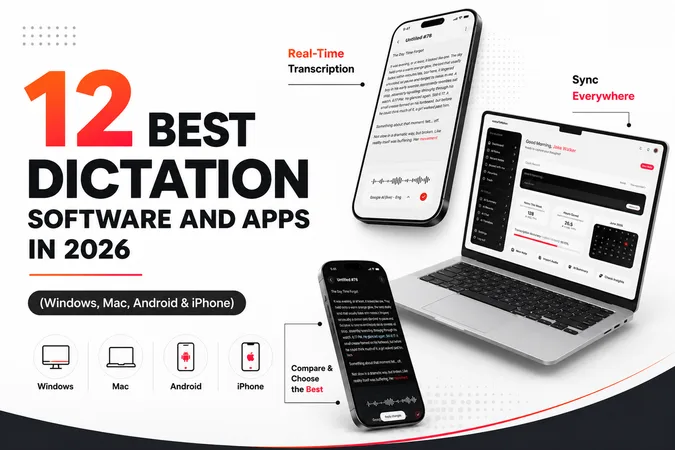
.webp)